
GCP GCS
This guide explains how to connect GCP Cloud Storage (GCS) to the Weekerp API.
This guide explains how to connect GCP Cloud Storage to the Weekerp API.
It includes the full process of creating credentials and registering them in Weekerp.
Required information for connection
To allow Weekerp to access your images, you need to provide the following:
- service account key (JSON)
- Client email
- Project Id
- private key
- bucket name
Getting credentials (GCP)
If you’re not familiar with GCP, we recommend creating a new read-only Service Account so Weekerp can read images from your bucket.
- Open the GCP Console → Service Accounts → Create service account
- Enter a Service Account name (e.g.,
weekerp-cdn-reader) → Create and Continue - Set the role → search/select Storage Object Viewer → Done
- Select the created Service Account → Keys tab → Add Key → Create new key → JSON → Create
- Save the downloaded JSON key file (do not share externally).
- In the GCP Console → Buckets, confirm the Bucket name to connect.
- In Weekerp → Sources → Add Source → Google Cloud Storage (GCS)
- Enter the Bucket name + upload the JSON key file → Next
- Enter an Alias and create it to add the source.
Below is the same guide shown in images.
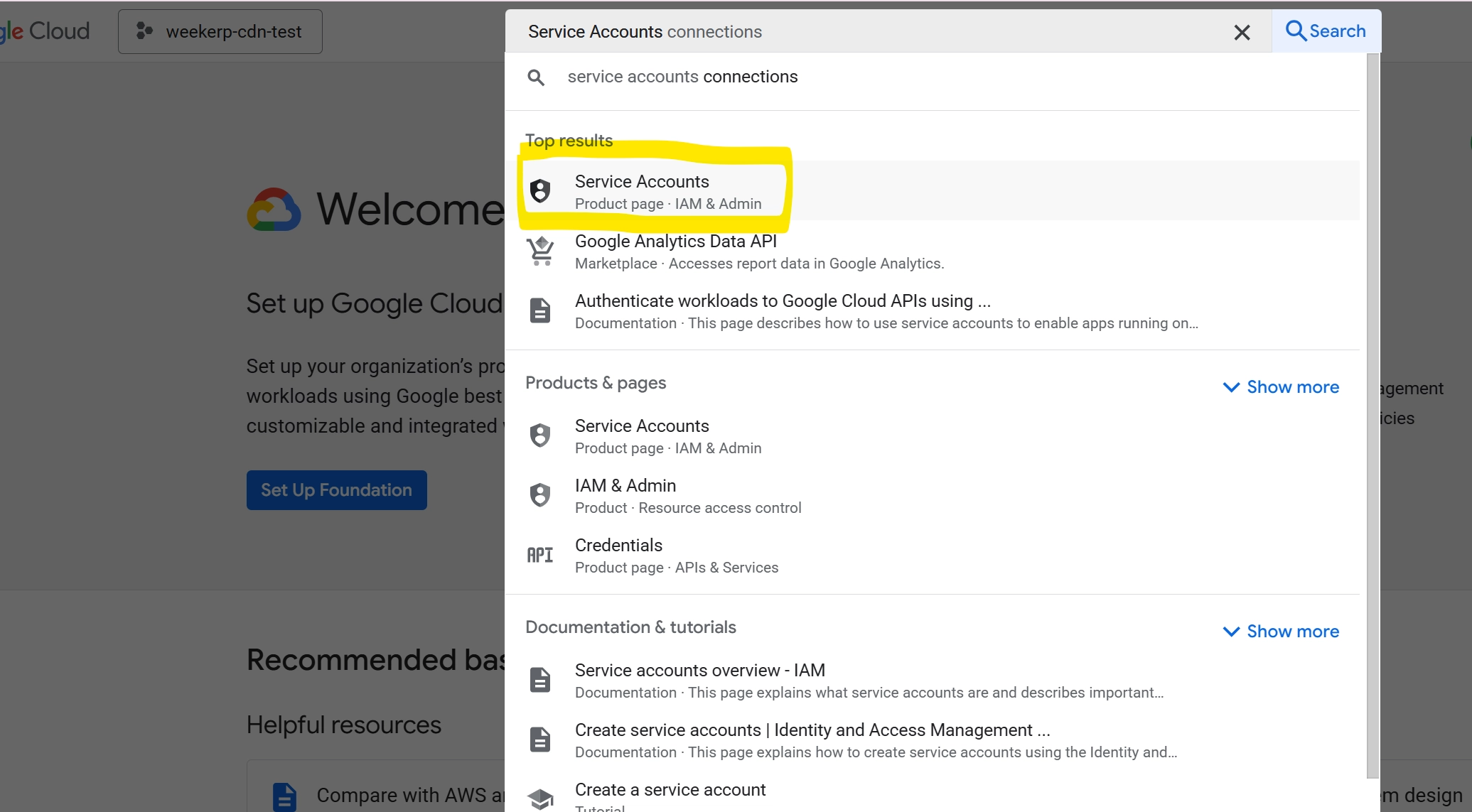
1. Search for “Service Accounts” in the GCP Console
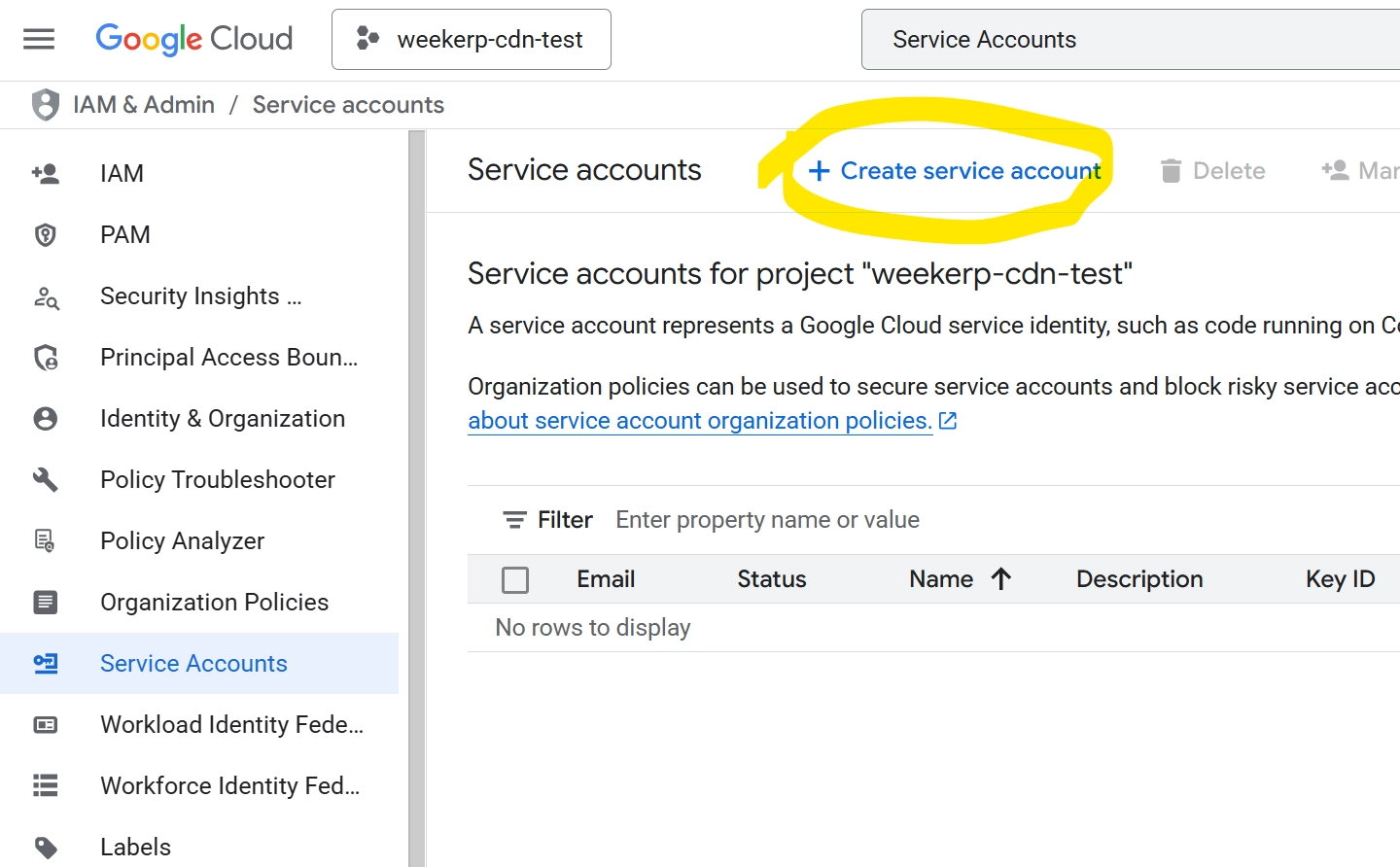
2. Click “Create service account”
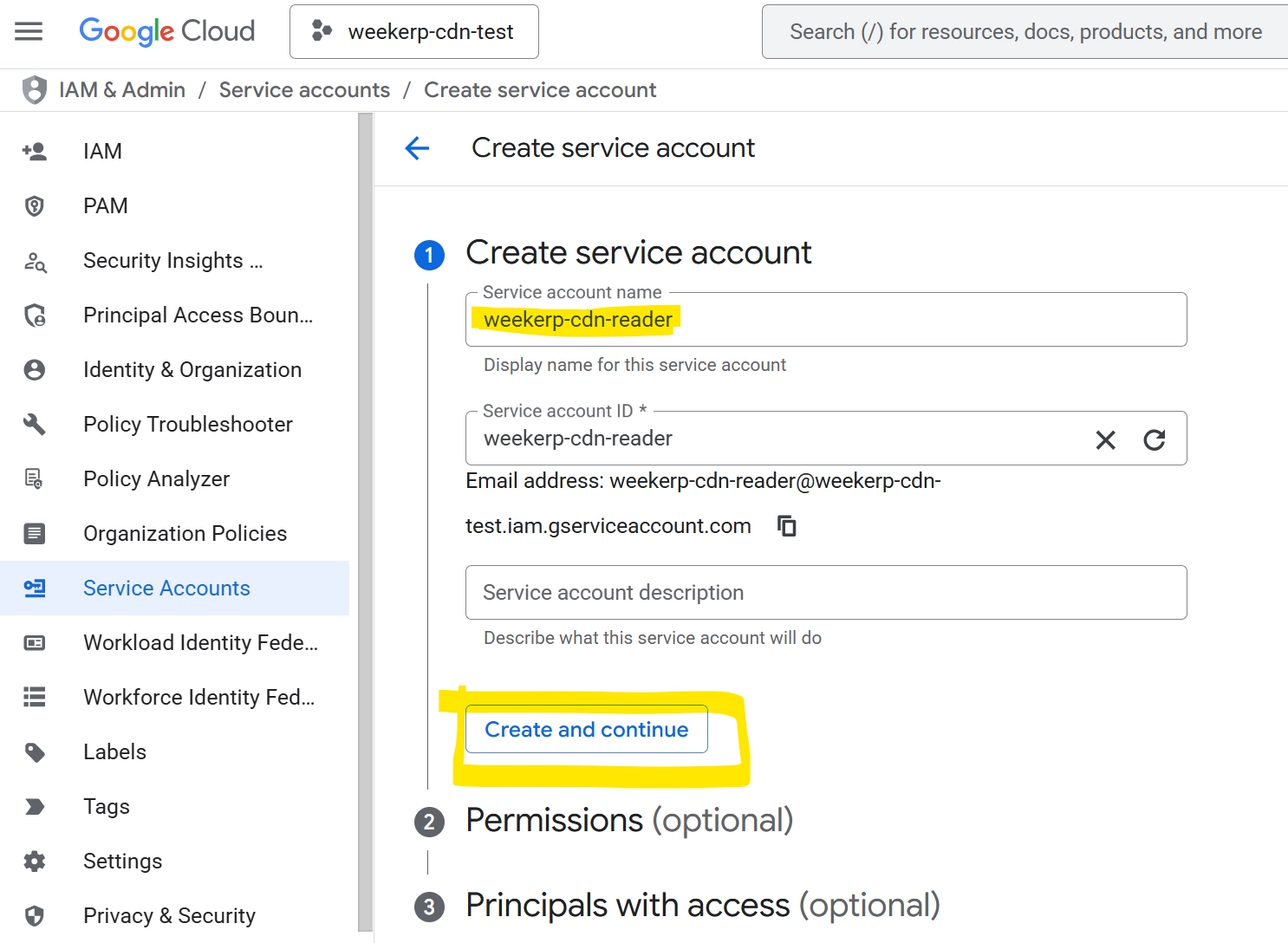
3. Create a Service Account
- Enter
weekerp-cdn-reader(you can change this) - Click Create and Continue
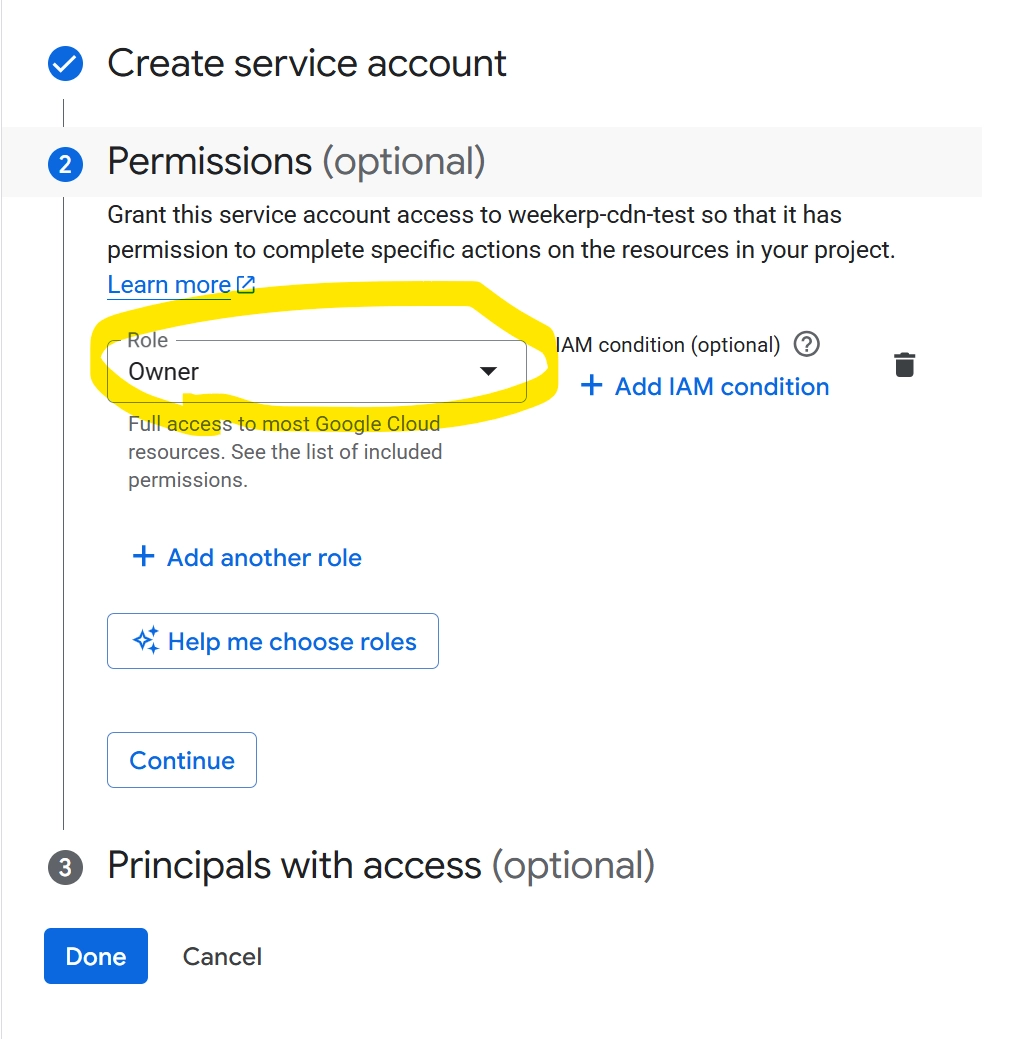
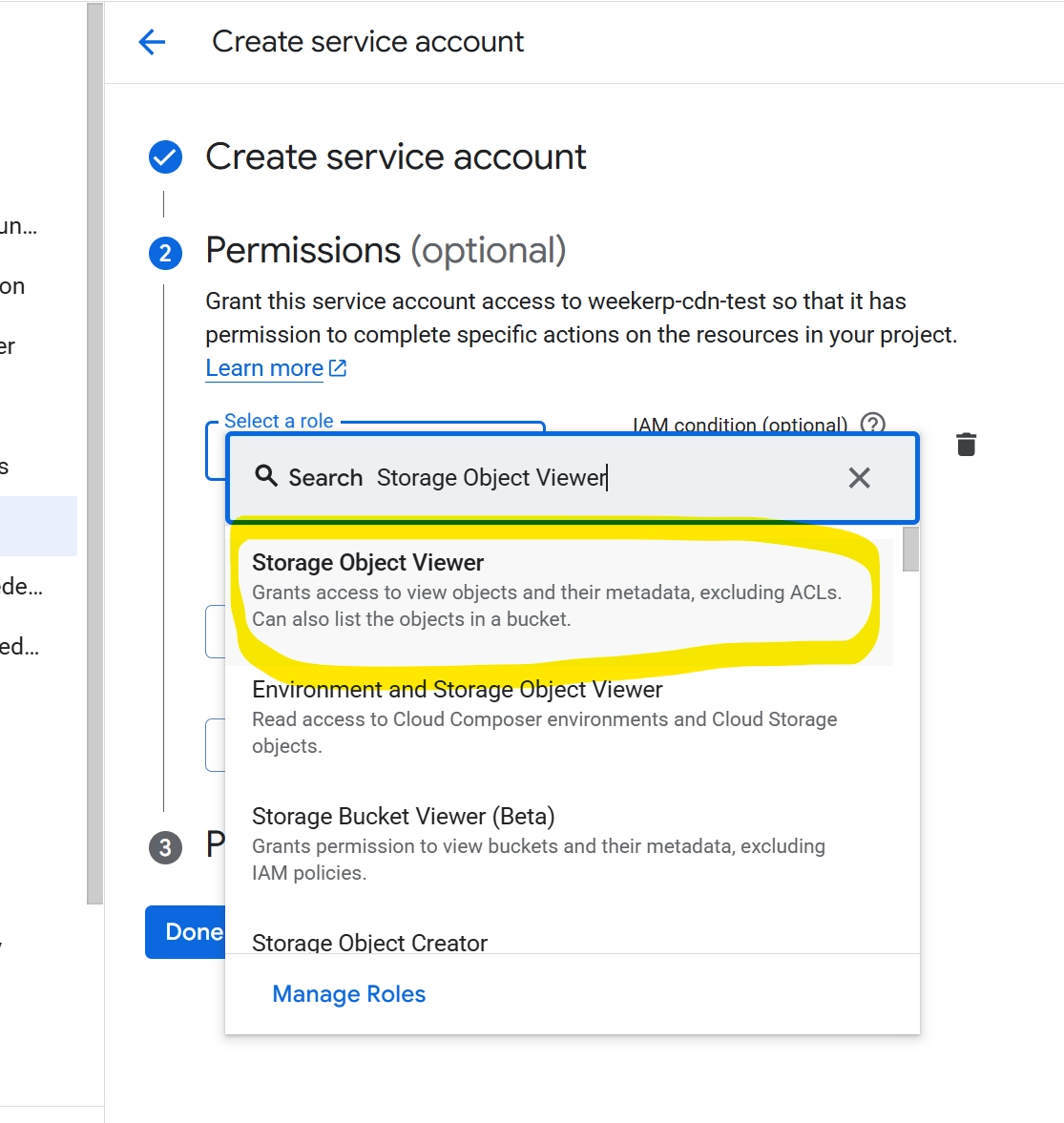
4. Grant permissions to the account, and open the Role dropdown
5. Search and assign Storage Object Viewer
- Search for Storage Object Viewer
- Click Storage Object Viewer at the top of the results
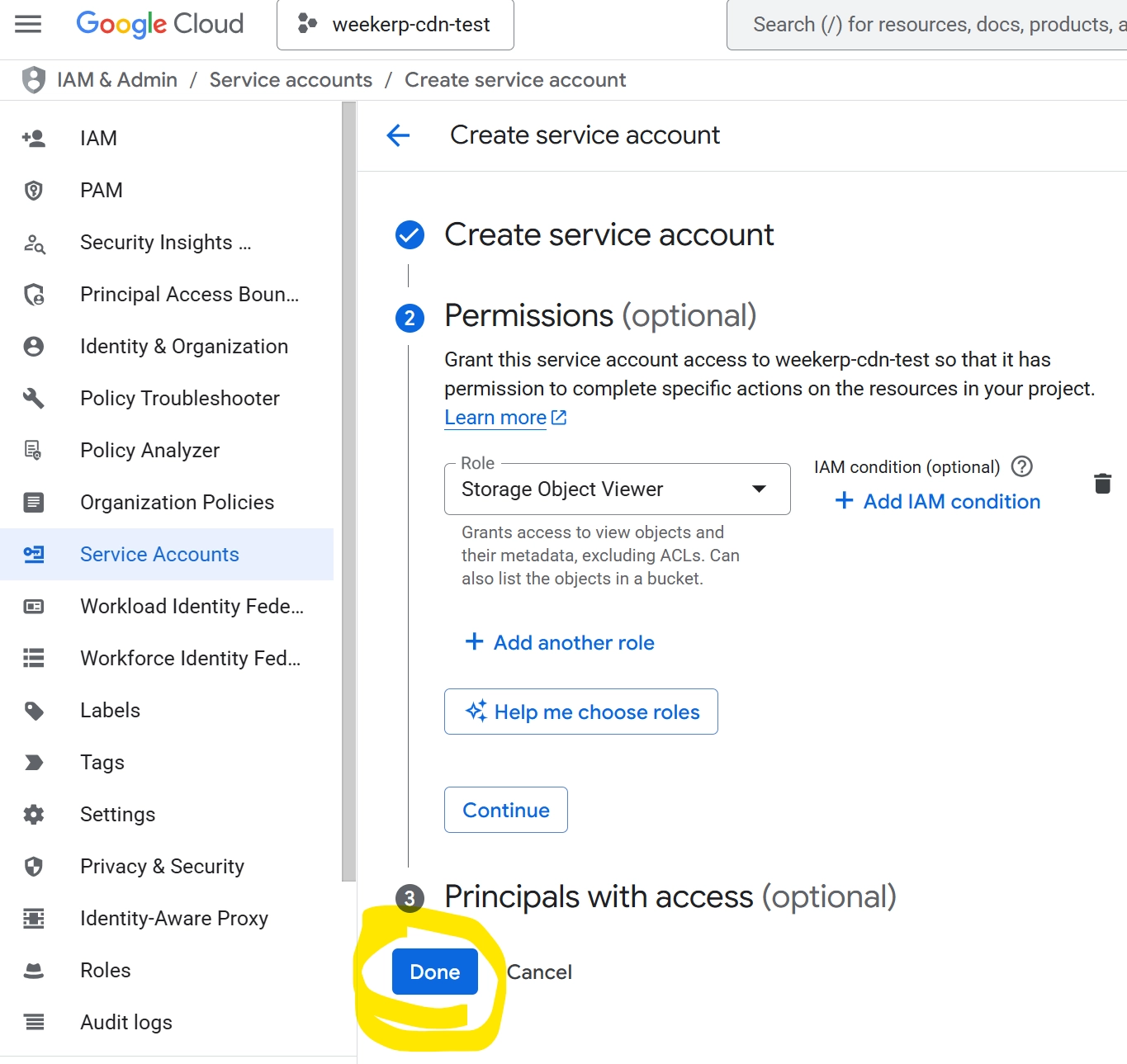
6. Finish granting permissions
- Click Done
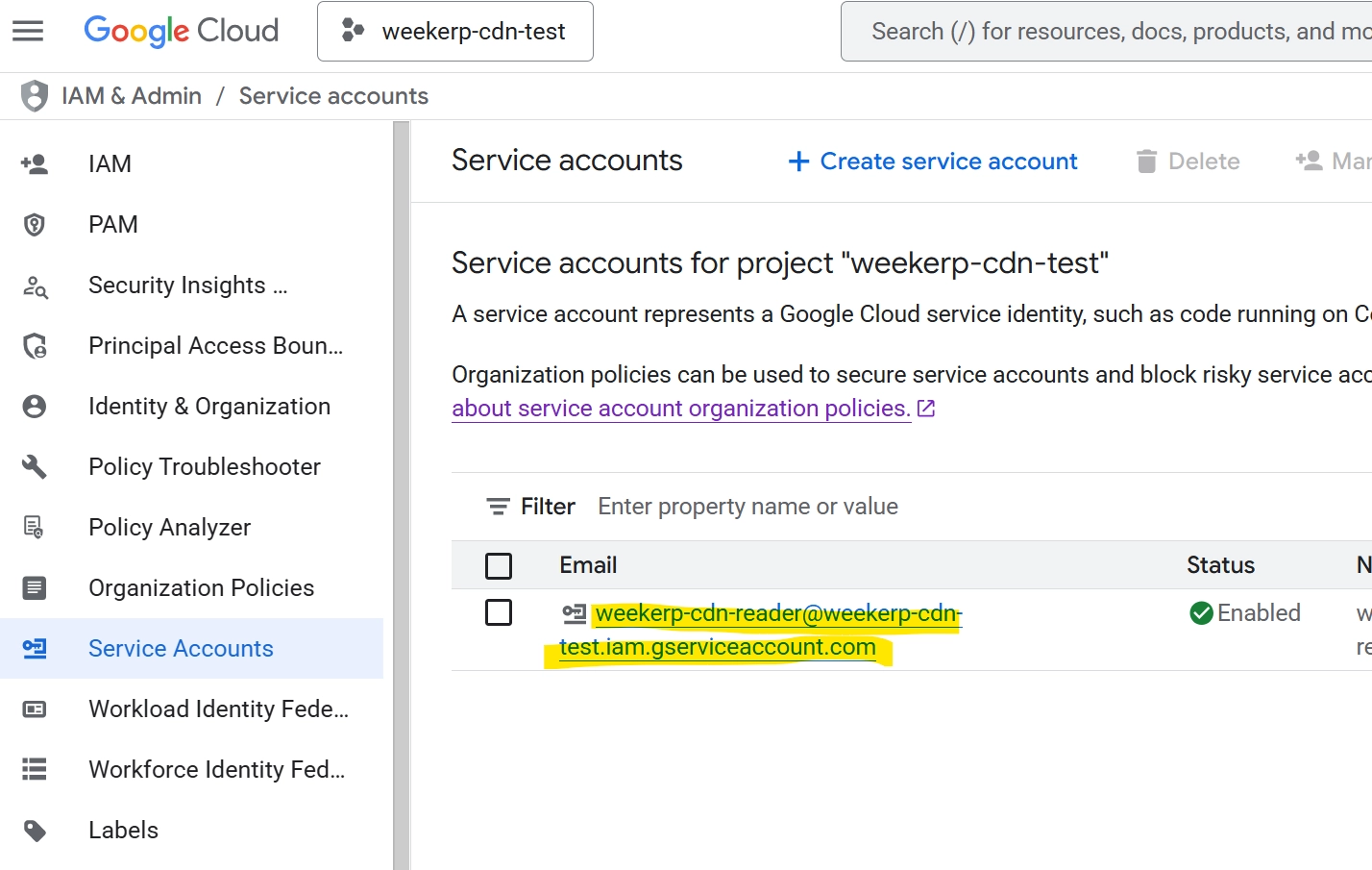
7. Verify the created account and open its details
- Confirm the created account
- Click the account name
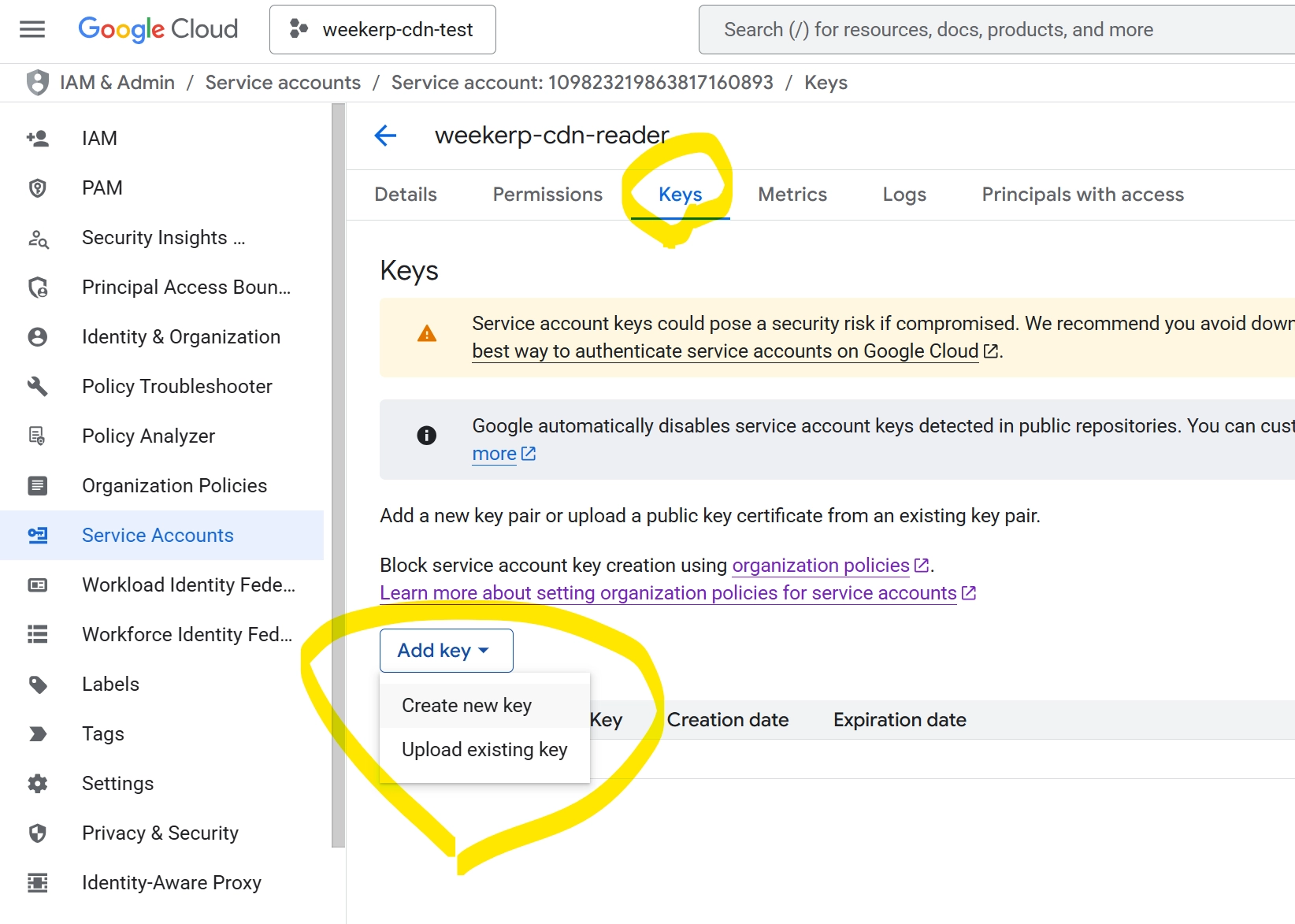
8. Create a key (JSON)
- Click the Keys tab
- Click Add Key
- From the dropdown, click “Create new key”
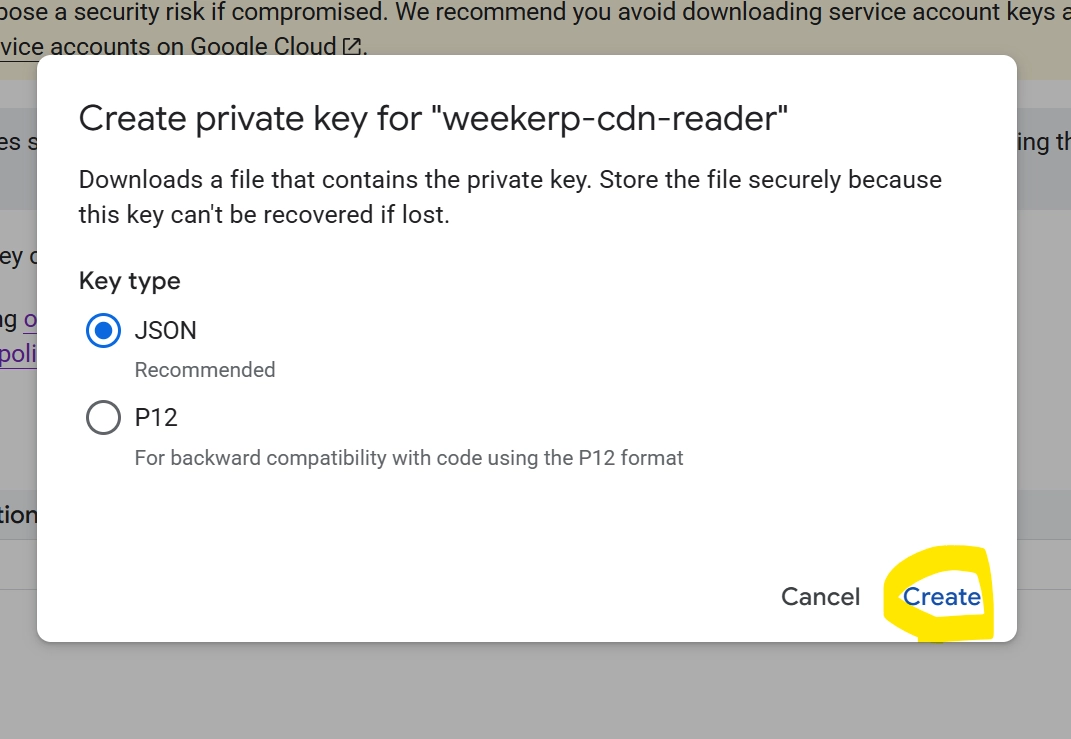
9. Select the key type
- Choose JSON
- Click Create (bottom-right)
10. Verify the downloaded key file (.json)
After downloading the JSON file, you’ll receive a key like the following (do not share externally).
{
  "type": "service_account",
  "project_id": "weekerp-cdn-test",
  "private_key_id": "0123456789abcdef0123456789abcdef01234567",
  "private_key": "-----BEGIN PRIVATE KEY-----\n(private key)\n-----END PRIVATE KEY-----\n",
  "client_email": "weekerp-cdn-reader@weekerp-cdn-test.iam.gserviceaccount.com",
  "client_id": "123456789012345678901",
  "auth_uri": "https://accounts.google.com/o/oauth2/auth",
  "token_uri": "https://oauth2.googleapis.com/token",
  "auth_provider_x509_cert_url": "https://www.googleapis.com/oauth2/v1/certs",
  "client_x509_cert_url": "https://www.googleapis.com/robot/v1/metadata/x509/weekerp-cdn-reader%40weekerp-cdn-test.iam.gserviceaccount.com",
  "universe_domain": "googleapis.com"
}
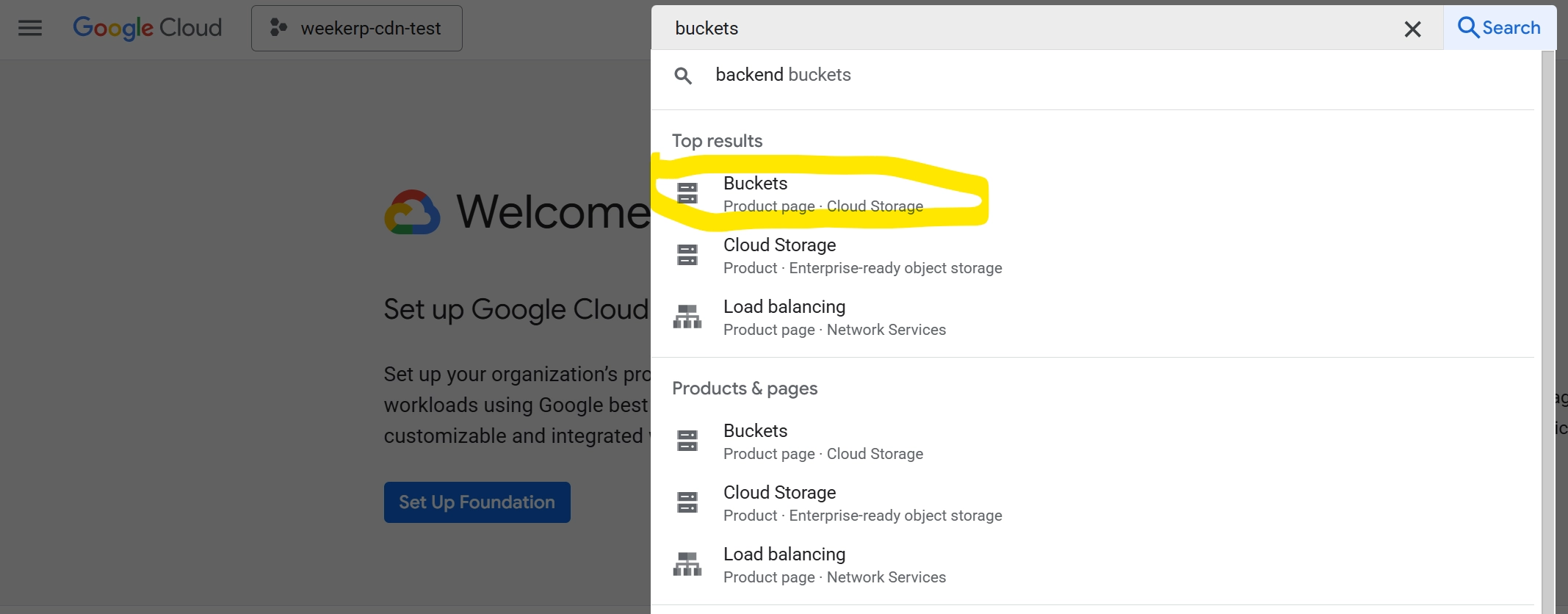
11. Search for Buckets in the GCP Console (to confirm the bucket name)
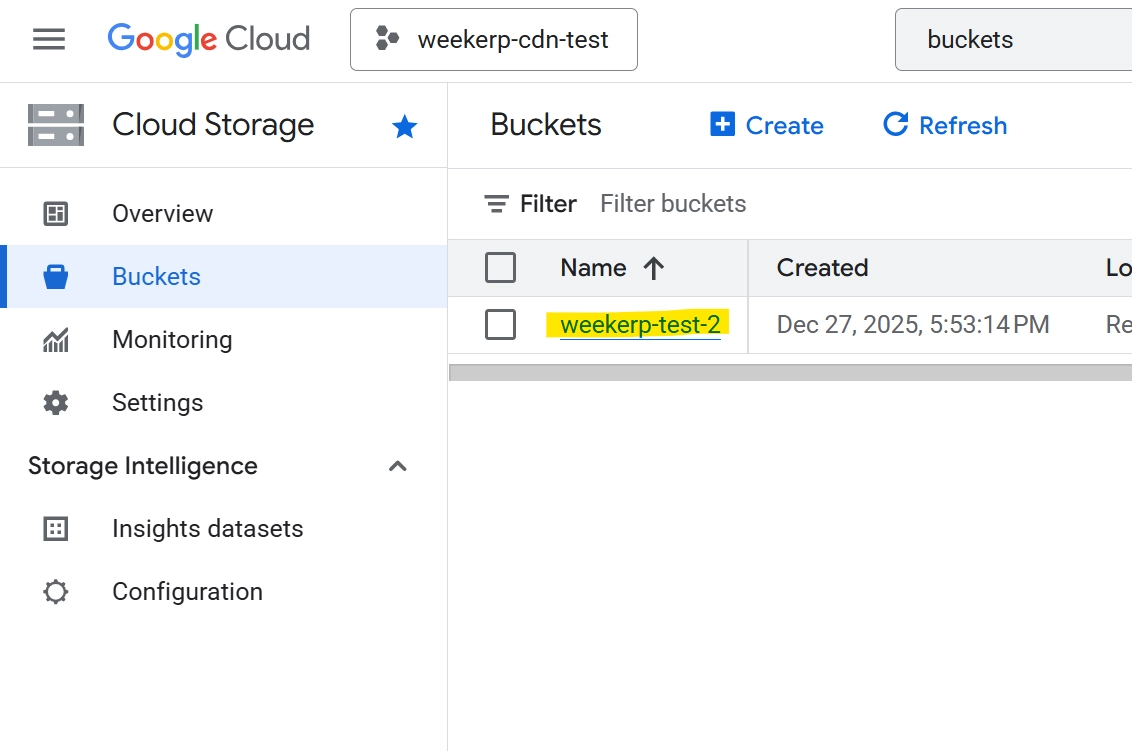
12. Confirm the Bucket name
- Example:
weekerp-test-2
13. You should have the following information ready:
- Credential JSON file (Step #10)
- Bucket name (Step #12)
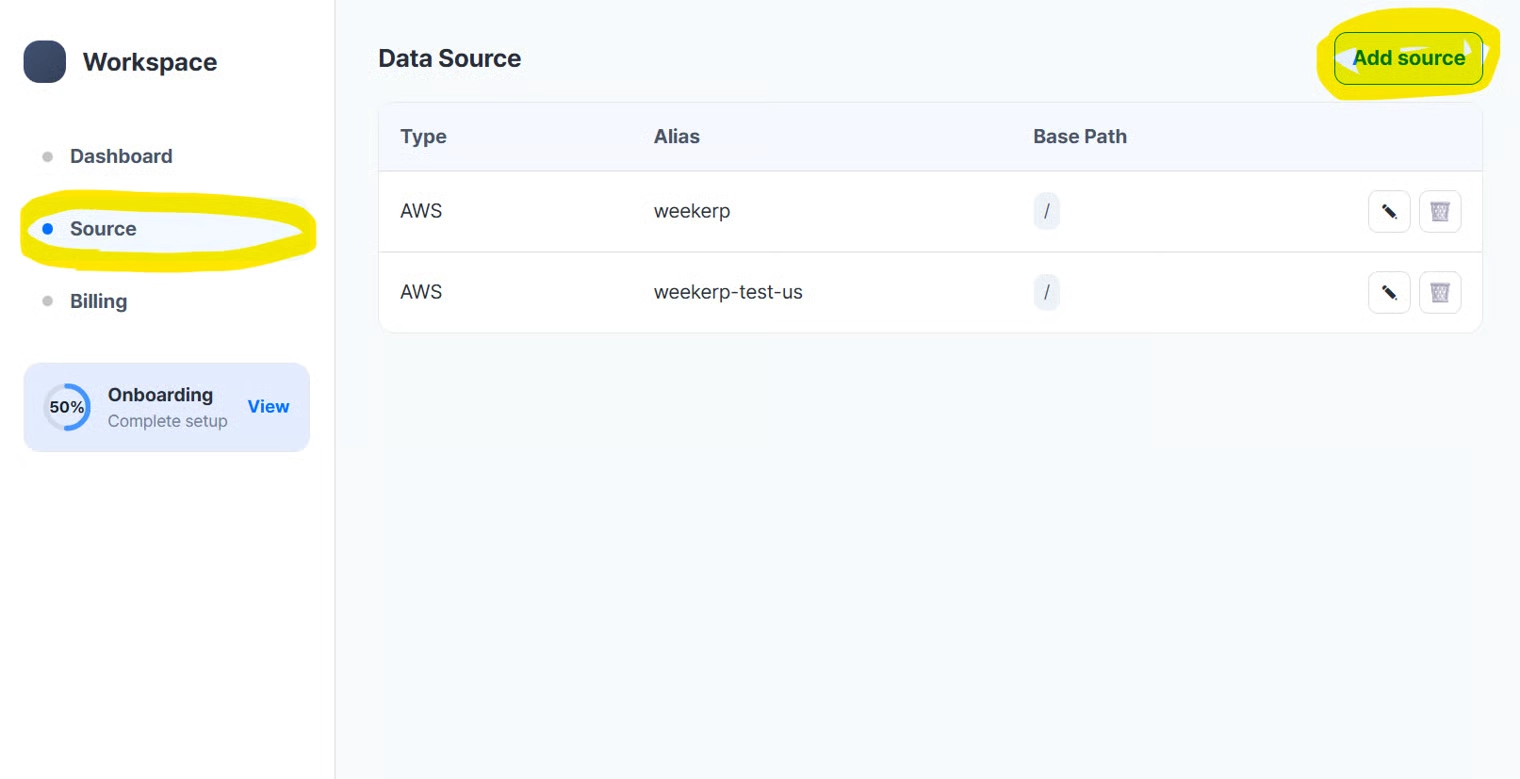
14. In Weekerp, click Add Source (top-right)
- Open Weekerp
- Click the Source tab
- Click Add Source
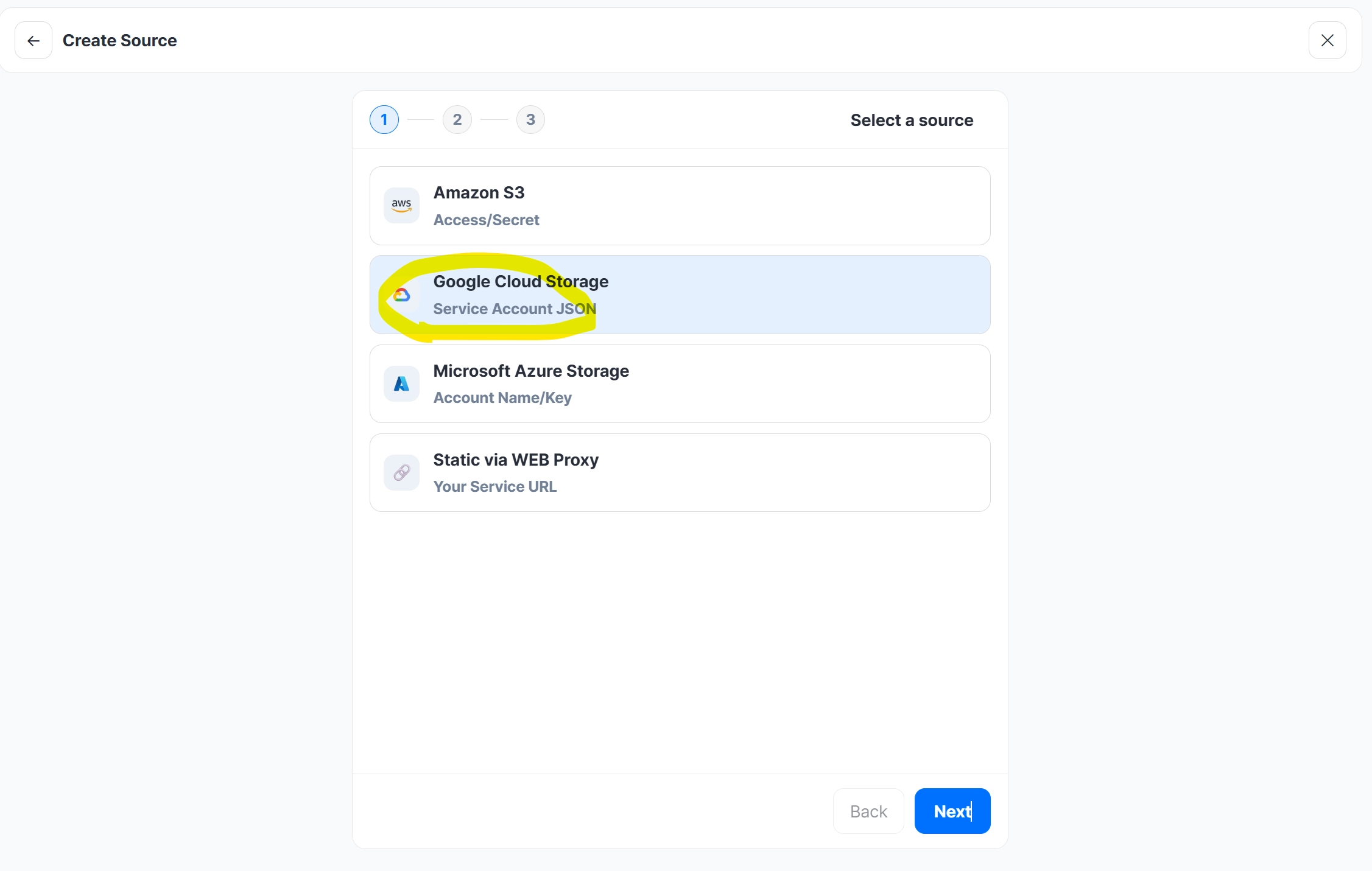
15. Select Google Cloud Storage
16. Enter credential information
- Enter the Bucket name
- Upload the JSON file
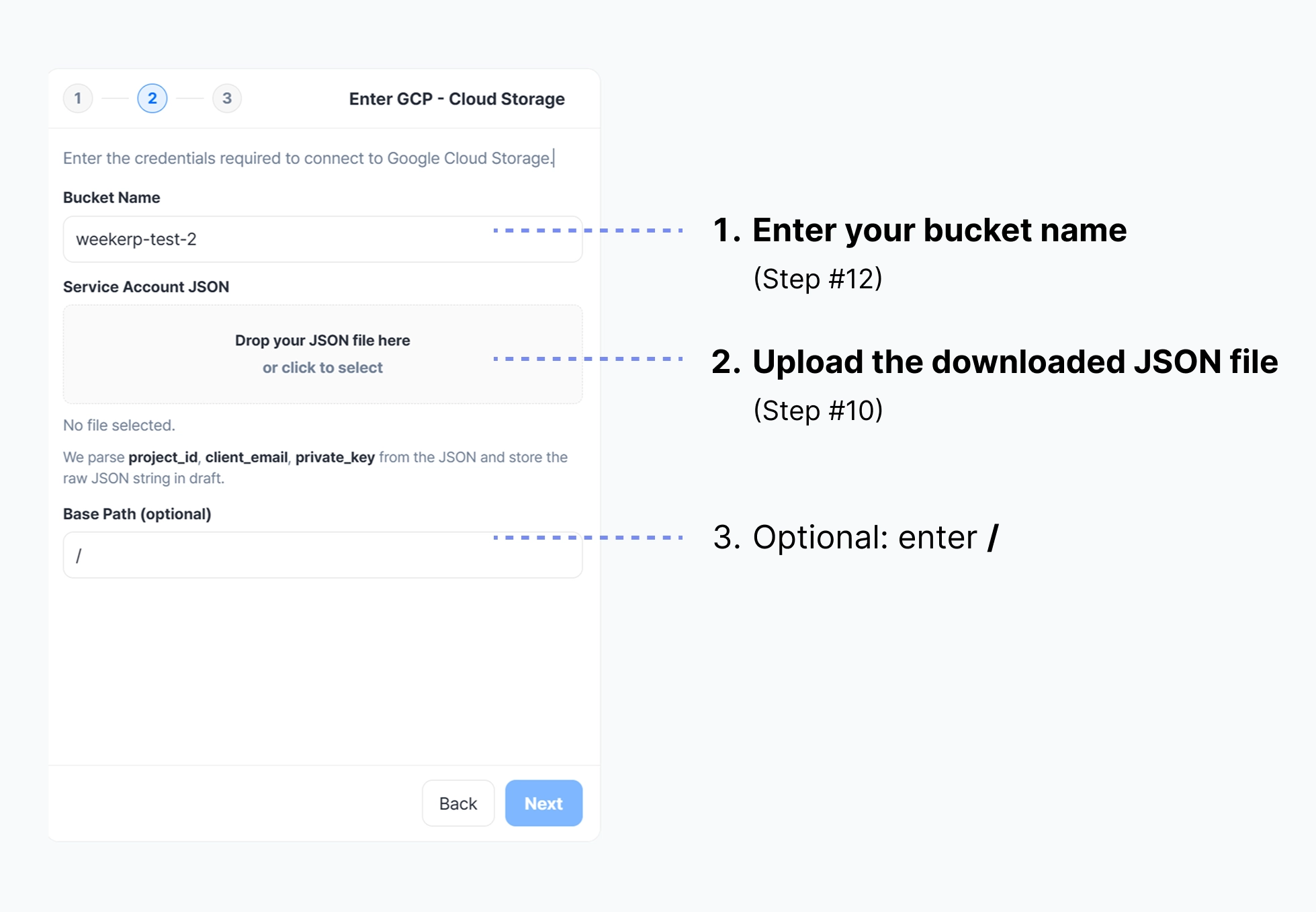
BasePath sets the root directory for origin requests.
If your files are stored like below, you can set BasePath to / or /assets.
- /dog.jpg
- /assets/cat.png
Request example
cdn.weekerp.com/image/{alias}/dog.jpg
Origin request
- With BasePath set:
https://static.example.com/assets/dog.jpg - Without BasePath:
https://static.example.com/dog.jpg
For more details, please refer to BasePath.
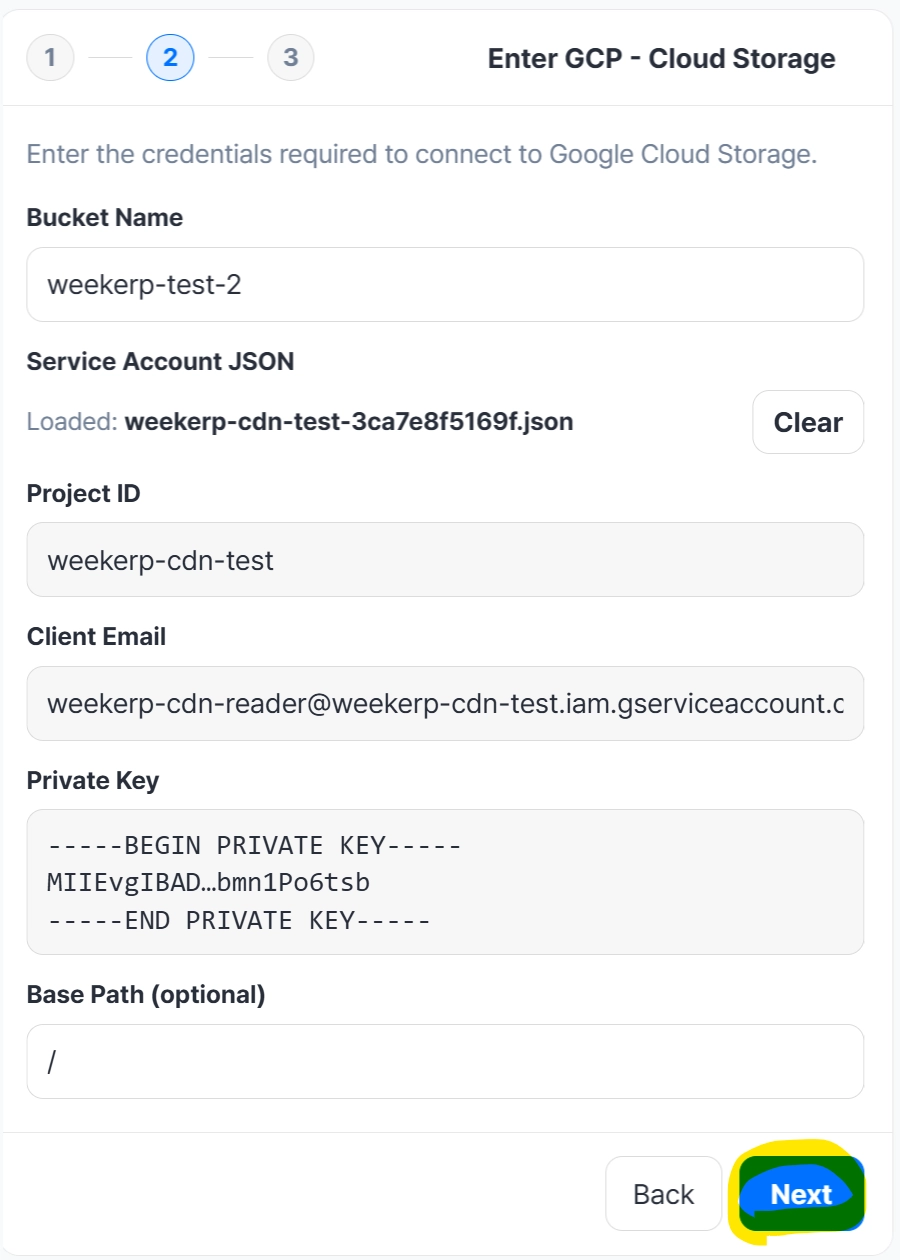
17. Review the entered information
- Confirm the details
- Click Next
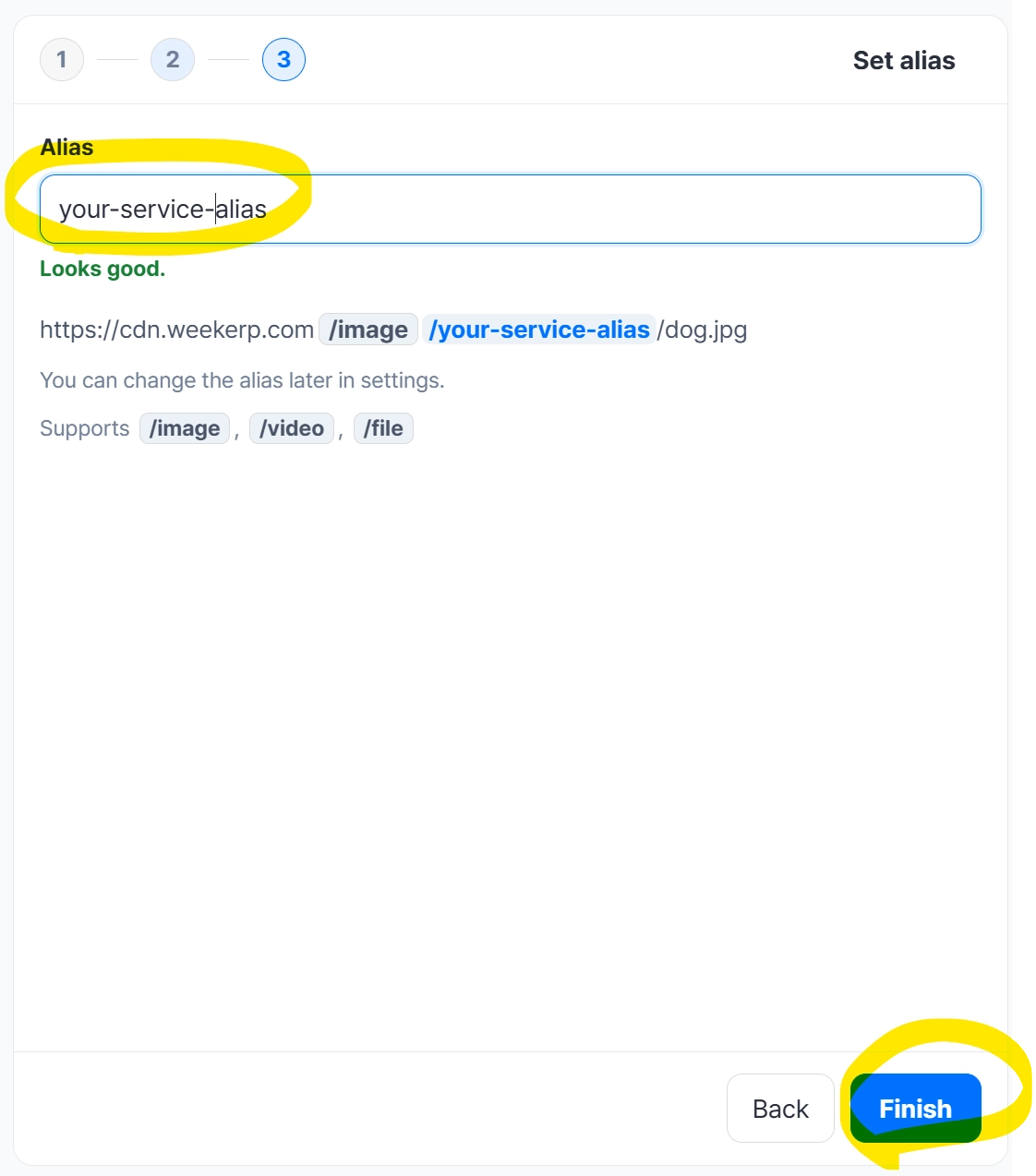
18. Enter the source alias
- Enter the alias you want to use
- Create the alias
19. Verify the created data source
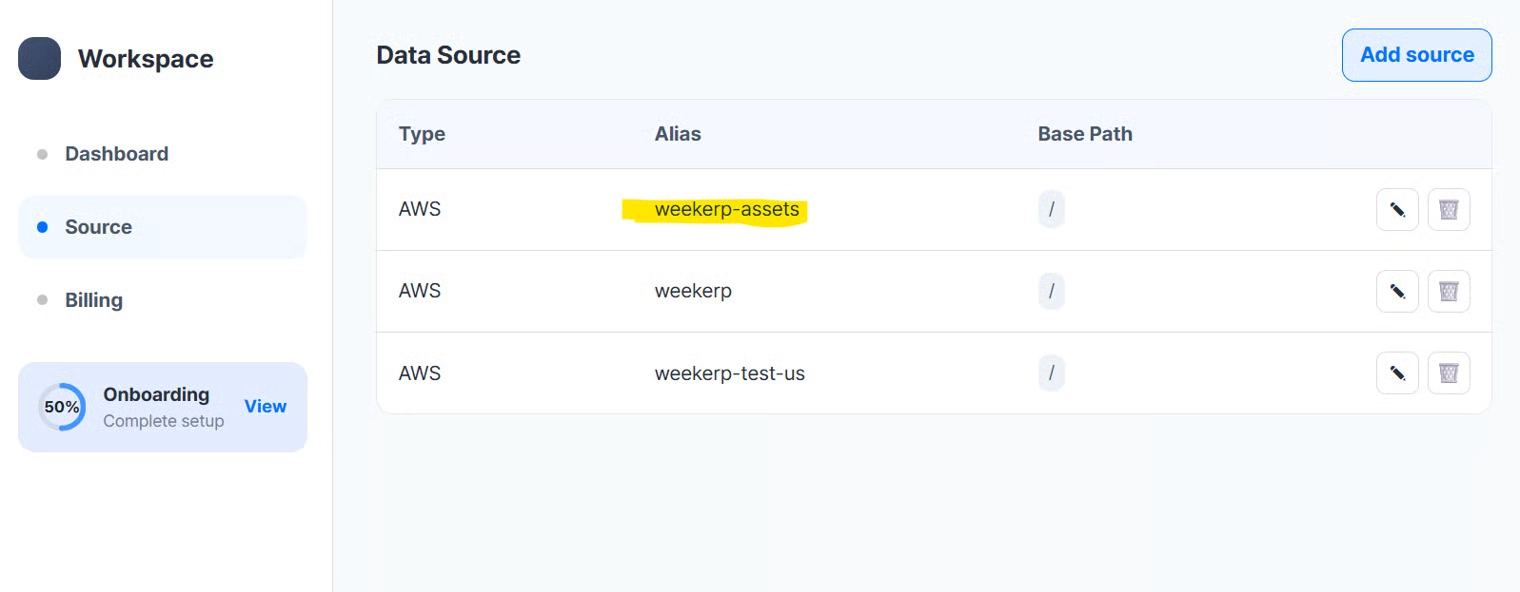
Use it like this:
cdn.weekerp.com/image/weekerp-assets/dog.jpg
cdn.weekerp.com/image/weekerp-assets/dog.jpg?ai=Rotate the image to the right
cdn.weekerp.com/video/weekerp-assets/test-video.mp4
All settings are complete.
In general, it takes about 5–10 minutes to propagate the connection across all global environments.