Debugging
AI Query converts your natural-language prompt into internally executable transformation options. In Debugging mode, you can inspect the final applied options i
AI Query converts your natural-language prompt into internally executable transformation options.
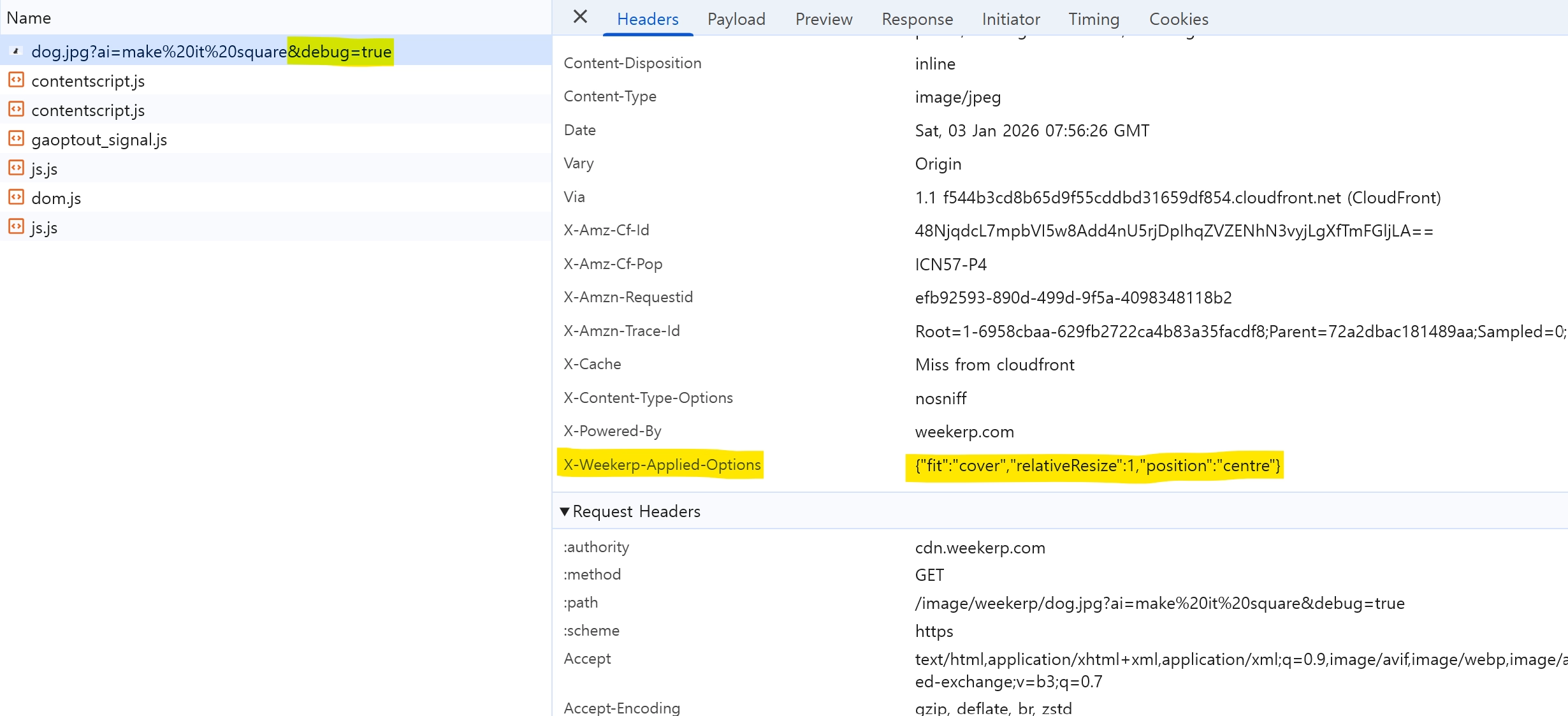
In Debugging mode, you can inspect the final applied options in the x-weekerp-applied-options response header.
Mac / Linux (bash, zsh)
curl -sI --get "https://cdn.weekerp.com/image/weekerp/dog.jpg" \
  --data-urlencode "debug=true" \
  --data-urlencode "ai=make it square" \
  | tr -d '\r' \
  | awk -F': ' 'tolower($1)=="x-weekerp-applied-options"{print $2}'
Windows CMD
curl -sI -G "https://cdn.weekerp.com/image/weekerp/dog.jpg" -d "debug=true" --data-urlencode "ai=make it square" | findstr /I "^x-weekerp-applied-options:"
Example output
x-weekerp-applied-options: {"fit":"cover","position":"centre","relativeResize":1}
Check on the website
You can also verify this by entering a URL on the demo page.
Check in Developer Tools
https://cdn.weekerp.com/image/weekerp/dog.jpg?ai=make it square&debug=true
When you enable debug=true, you can find x-weekerp-applied-options in the response headers in your browser’s DevTools.