
How to Verify Your Site in Google Search Console Without Editing Code
Upload Google Search Console and Naver Search Advisor verification files without editing your site's code. Change your favicon and robots.txt there too.
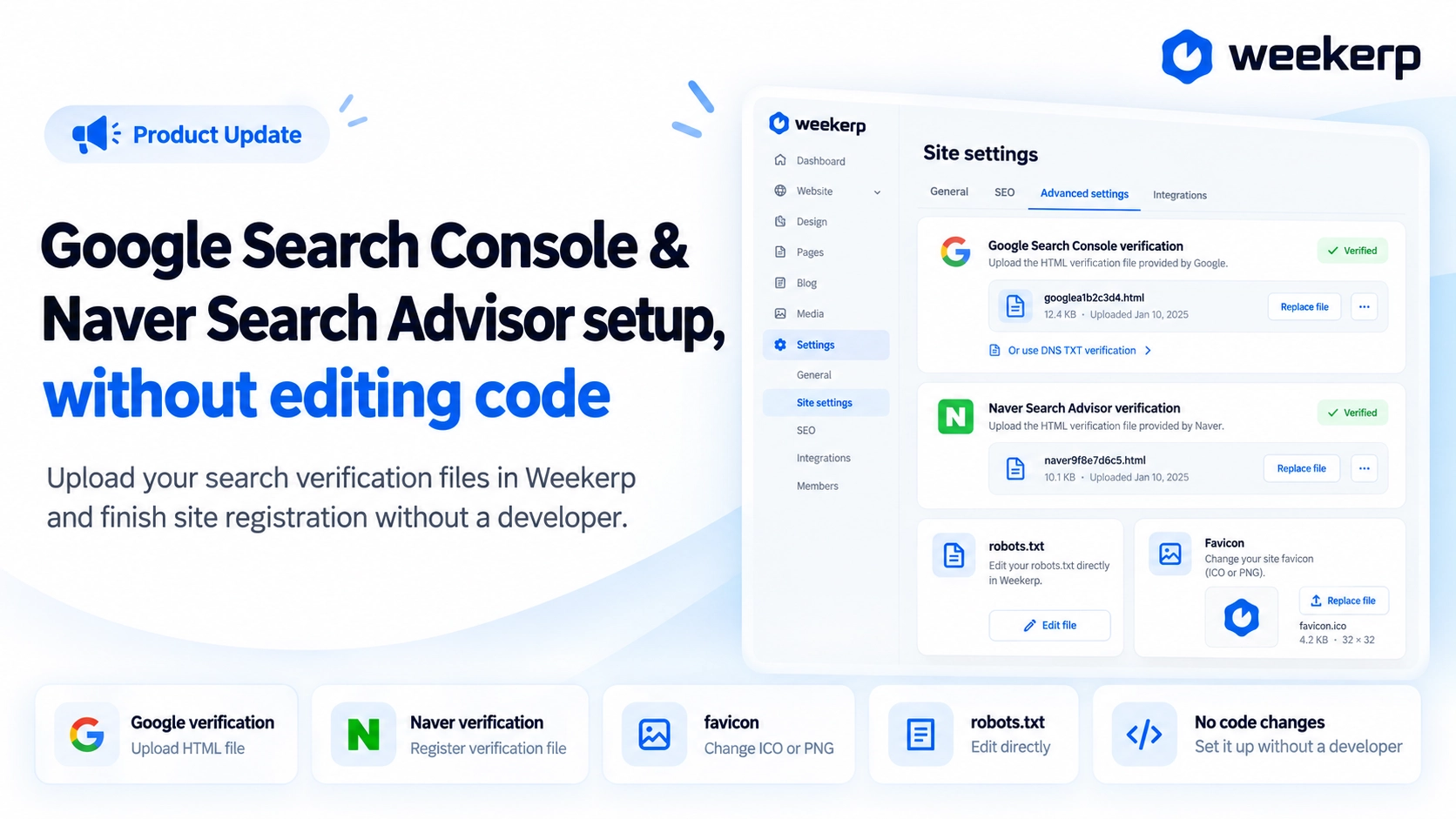
You can now upload the ownership verification files for Google Search Console and Naver Search Advisor (the webmaster tool for Naver, Korea's largest search engine) right from Weekerp, with no code changes. Even on site builders where uploading a file to your site is hard, all it takes is picking one file. No need to ask a developer. Get your site verified with search engines today. :)
What we had in mind when we built it
-
We built it so you never touch your site's code. Uploading a single Search Console verification file often meant asking a developer, or getting stuck because the site builder wouldn't let you upload files. Weekerp serves that file at your address for you, and verification files you already put on your original site keep working.
-
We built it so you upload the file exactly as you got it. We serve it with its name and content unchanged. If you upload it to the wrong place (say, a Naver file on the Google card), we tell you right away.
-
We made sure verification doesn't drop by accident. Deleting a registered file removes the verification done with it, so we ask once more before you delete.
Who it's for
-
You were following a guide on Google Search Console verification or Naver Search Advisor ownership verification and got stuck at uploading the HTML file to your site
-
Your site is built on a site builder, so you can't put files at the root of your domain
-
It's hard to ask a developer every time you want to change your favicon or
robots.txt
What's included
You can handle the settings for search engine registration on one screen: Sites > Advanced.
-
Google Search Console verification: Upload the HTML file from Search Console as is. If you connected your site by moving your nameservers to Weekerp, you can also paste a DNS TXT value to verify your whole domain at once.
-
Naver Search Advisor verification: Upload the HTML file from Search Advisor as is.
-
favicon: Change the site icon shown in browser tabs and search results with an ICO or PNG file.
-
robots.txt: Edit
robots.txt, the file that tells search engines and AI bots what they may read, right on the screen.
How to use
Your site needs to be connected to Weekerp first. Start from Search engine verification under Sites > Advanced in the left menu.
-
Check the address: Check the address shown on the Weekerp Google Search Console card (with HTML file selected) or the Naver Search Advisor card. Enter this exact address when you register your site with Google or Naver (in Google, as a URL prefix property).
-
Download the file: Choose HTML file in Google or HTML file upload in Naver, and download the
googleXXXX.htmlornaverXXXX.htmlfile. Don't change its name or content. -
Upload the file: On the Weekerp card, click Upload HTML file and pick the file. Once you see "Registered," you're done.
-
Verify: After a few minutes, click Verify in Search Console, or the ownership verification button in Search Advisor.
The HTML file method verifies only the one address shown on the card. Addresses with and without www are treated separately.
No code changes needed. Verify your site in Google Search Console and Naver Search Advisor today.