
Blog Traffic Sources by Post: See Which Posts Bring In Your Visitors
Check views, traffic channels, and AI bot requests for every blog post, right from your post list. See at a glance which content drives visitors to your site.
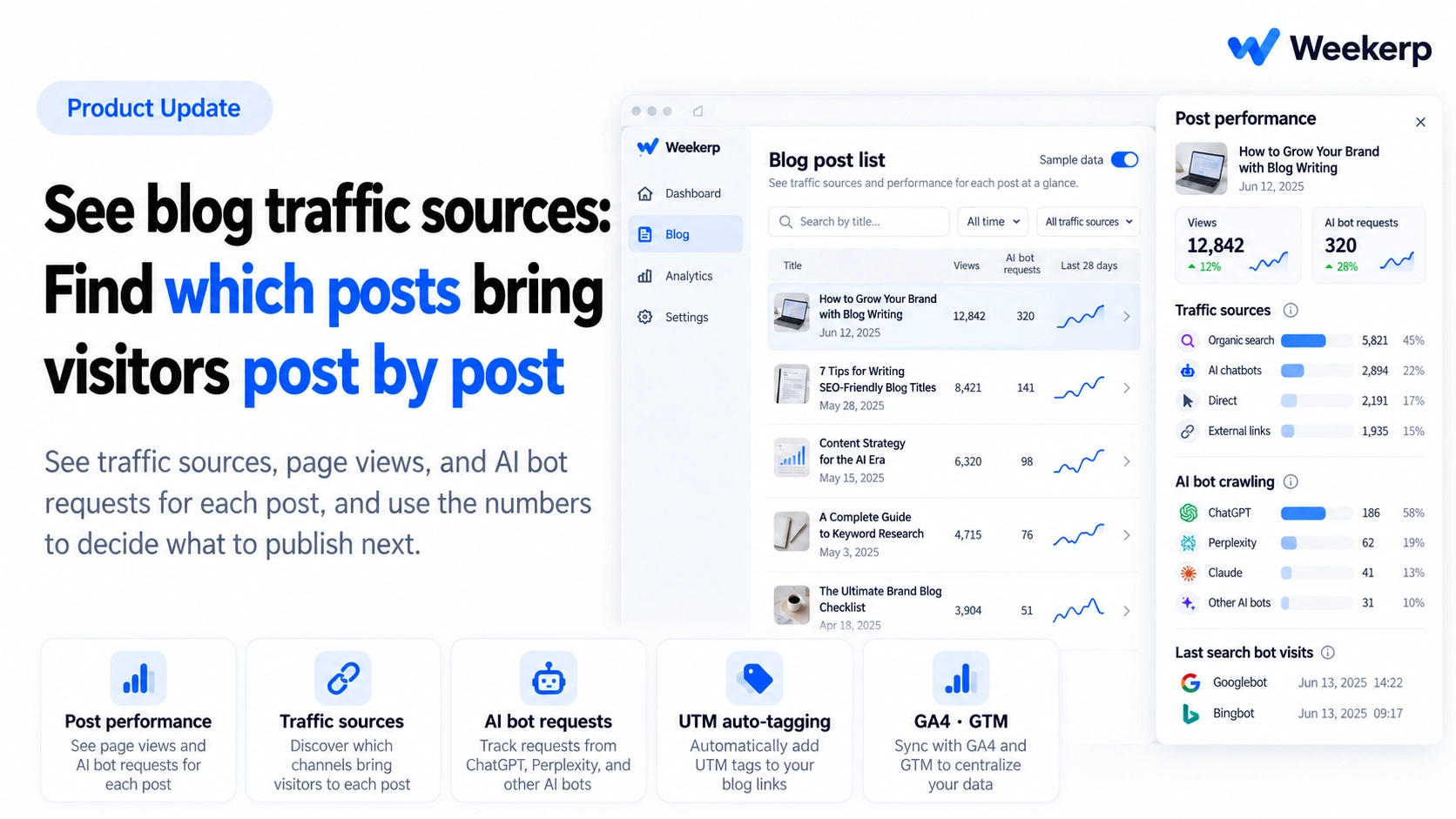
You can now see traffic sources and performance for every post, right in your blog post list. Find out which posts bring in visitors, and even whether AI bots and search bots have read them, all on one screen. Now you can pick your next topic based on numbers, not guesswork. :)
What we had in mind when we built it
-
See performance where you write. Checking how a single post was doing meant opening Google Analytics and filtering by the post URL. So we brought performance right into your post list.
-
AI bots matter as much as human visitors. These days, AI like ChatGPT reads your posts, uses them in answers, and sends visitors through the links in those answers. So we count AI bots from visit records, even the ones Google Analytics can't see, and show them right next to your views.
Who it's for
-
You want more blog traffic, but you can't tell which posts bring in visitors, so it's hard to decide what to write next
-
You publish regularly and wonder whether Google is actually reading your posts
-
You want to know whether your posts are used in ChatGPT or Perplexity answers, and whether that turns into real visits
-
You want to see visits from your blog to your website broken down by post in Google Analytics
What's included
Just open your post list. Everything you need for content performance analysis is right there.
-
Per-post numbers and mini trend lines: Every row shows views, AI bot requests, and a mini trend line for the period you picked. Just scan the list to spot the posts that are taking off. The performance card at the top compares your whole blog's trend with the previous period of the same length.
-
Post performance panel: Click a row to open that post's performance. It shows where visitors came from (Traffic channels), which AI bots read it (AI bot crawling), and when Google and Naver (Korea's leading search engine) last crawled it.
-
Automatic UTMs on links: Each post's UTM is added automatically to its CTA buttons and related post links.
utm_campaigncarries the post URL andutm_contentcarries the button position, so you can tell which button in which post sent the visit. -
Google Analytics and GTM: Just enter a GA4 measurement ID or GTM container ID, and it applies across your site and blog. No code to paste.
How to check your blog traffic sources
-
Go to Blog in the left menu, open Posts, and pick a metric tab and a date range in the performance card at the top.
-
Click the row of any post to open the Post performance panel.
-
Go to Blog settings, open Google Analytics, enter your GA4 measurement ID, and save. If you already run GA4 through GTM, enter only your GTM container ID.
-
In the post editor, use the UTM field on the right to choose where the link goes (Homepage, Another blog post, or Other). That's it.
If you don't have many posts yet, turn on Sample data in the top right to look around first.
Knowing which posts bring in visitors makes your next post easier. Check your blog traffic sources today.