
Multilingual Blog with Automatic hreflang: Link Each Post to Its Translations
Link each language version of a post as translations, and Weekerp adds hreflang and x-default for you. Multilingual SEO, handled right in your blog.
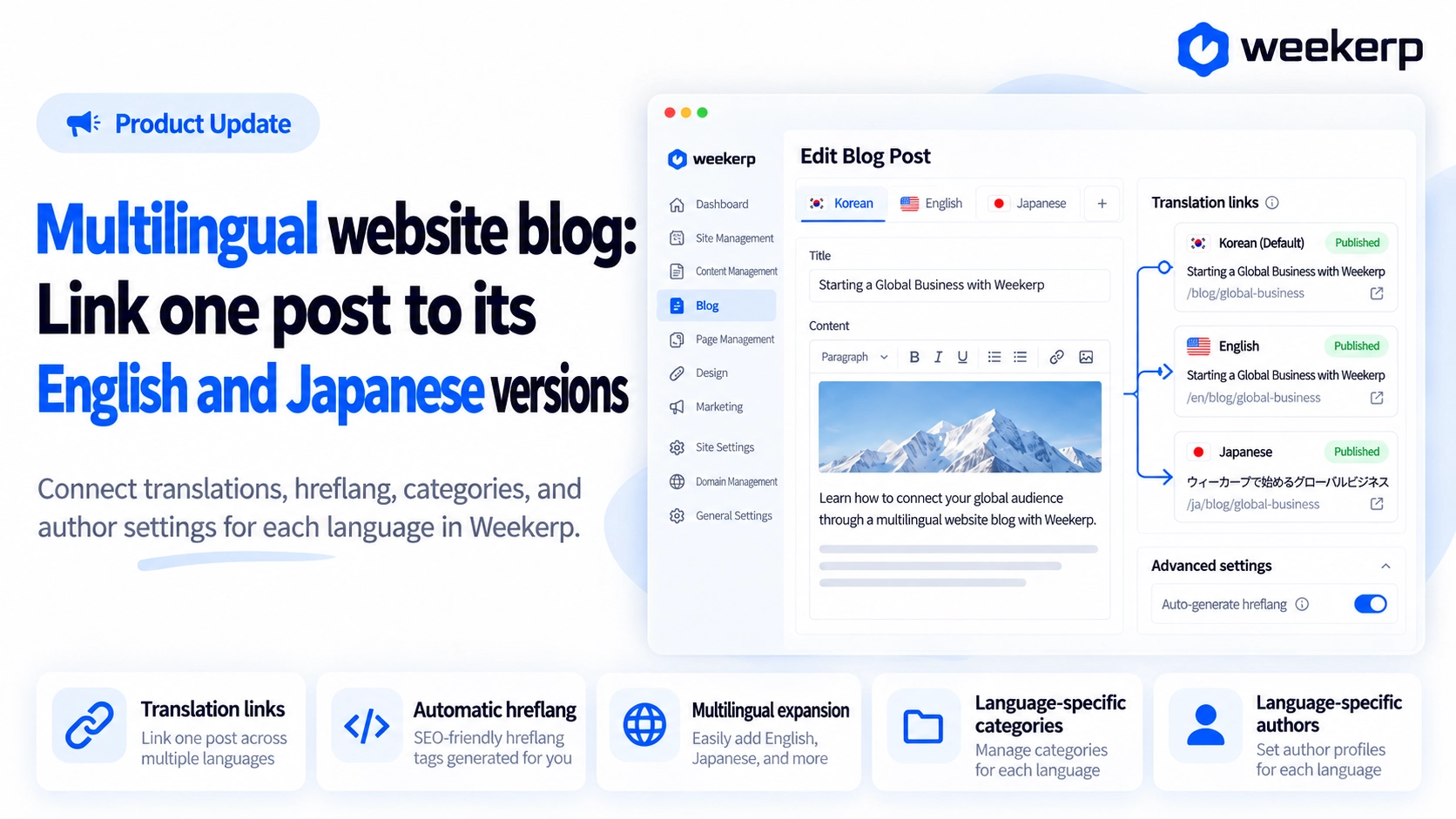
Here's a closer look at how your multilingual blog links each post to its translations, with hreflang added automatically. Once you link the versions together, Weekerp automatically makes sure search engines see them as "the same post in different languages."
What we had in mind when we built it
-
Linking is what makes a translation count. If you just publish a Korean post and an English post separately, search engines may treat them as two unrelated pages, or index only one of them. So we built a dedicated place to link the versions of a post together.
-
We ask for the original first when you create a translation. Weekerp serves customers in the US and Japan, so we run English and Japanese blogs alongside our Korean one. Running them ourselves, we found that most of our English and Japanese posts were translations of a Korean post. So when you create a post in a language other than your default, you pick which post it translates first. Pick one, and the new post starts out already linked.
-
Add or remove languages anytime. A blog for international audiences usually grows one language at a time. Removing a language doesn't delete any posts; visitors just stop seeing them. Add the language back, and they return exactly as they were.
-
Category and author names change with the language, too. An English post with Korean category and author names just looks off. So you can set those names separately for each language.
Who it's for
-
You have a multilingual website, but your blog is still in only one language
-
You're setting up a blog for an international audience and want to bring your existing posts over in English or Japanese
-
You've published the same post in several languages, but the wrong language version shows up in search results abroad
-
You want multilingual SEO settings like hreflang sorted out without a developer
How we support multilingual SEO
Just link your translations. Weekerp handles the language connections for you.
-
Translations: In the post editor, the Translations section on the right lets you pick one version for each language. You can link posts even after they're published. Posts that share the same address are linked automatically.
-
Tell search engines about each language version (hreflang): Linked posts automatically get hreflang tags that say "the English version of this post is here, the Japanese version is there." On the Weekerp blog, our llms.txt field test points to its Korean, English, and Japanese versions this way. Only versions that actually exist are listed, so nothing points to a missing page.
-
More languages: Under Blog settings → More languages, add or remove the languages you need from 14 options, including English, Korean, and Japanese. Each language gets its own post addresses, and you set the blog name and one-line summary separately for each.
-
Category and author names per language: Set names for categories under Name per language, and names and bios for authors in the Languages tab. Leave one blank, and the default name shows instead. Categories missing a translated name are marked "No translation" in the list, so you can spot the gaps right away.
How to use
Your blog needs to be up and running first. Start from Blog in the left menu.
-
Add languages: In Blog settings → More languages, use + Add a language to add English, Japanese, or any language you need.
-
Fill in names: In Name and summary, also in Blog settings, enter the blog name and one-line summary for each language. It's a good idea to fill in category and author names per language as well.
-
Create a translation: In Posts, pick the English tab and click New post. Choose the original post and click Create translation to open a new, linked post.
-
Link posts you've already written: If you already have translations written separately, pick the matching post for each language in the Translations section on the right side of the post editor.
Once you publish a translation, the language links are added automatically.
No developer needed. Start your multilingual blog today.