# AWS S3
This guide explains how to connect AWS S3 to use the Weekerp API.
It covers the full process of issuing credentials and registering them in Weekerp.
#### Required information for connecting
To allow Weekerp to access your images, you need to provide the following:
* Access Key ID
* Secret Access Key
* Bucket name
#### Getting credentials
If you’re not familiar with AWS, we recommend creating a dedicated IAM user so Weekerp can access your images.
1. Open the Amazon IAM (Identity and Access Management) console.
2. Go to **Users ⟶ Create user**.
3. Make sure to enable **Programmatic access**.
4. In the **Permissions** step, select **Attach existing policies directly**.
5. Search for and select the **AmazonS3ReadOnlyAccess** policy.
6. After completing the steps, you’ll receive an **Access Key** and **Secret Access Key**.
7. Then log in to Weekerp.
8. Go to **Sources ⟶ Add Source ⟶ Amazon S3**.
9. Enter the credentials you obtained above.
#### Below is the same guide shown in images.
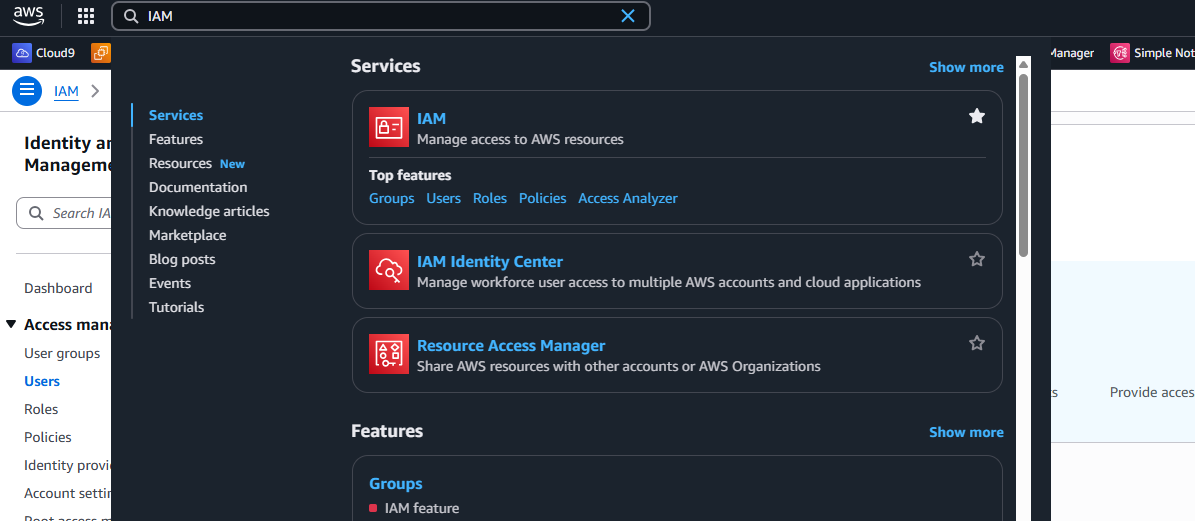
#### 1. In the AWS Management Console, search for **IAM**
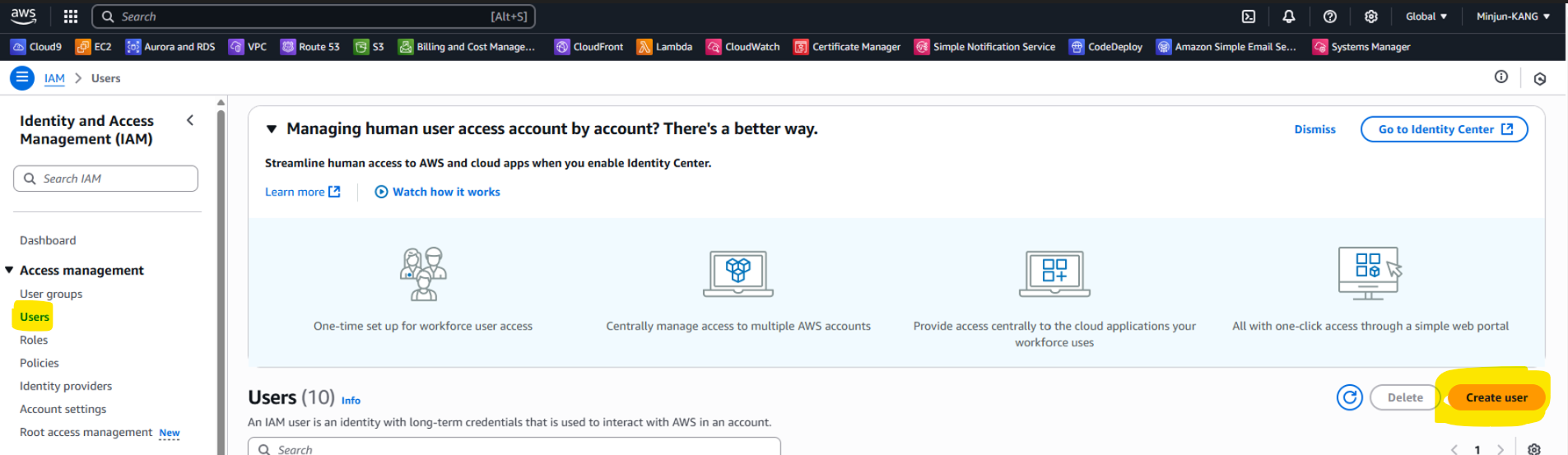
#### 2. In the left navigation, click **Users**, then click **Create user**
1. Click **Users** in the left navigation
2. Click **Create user** (bottom-right)
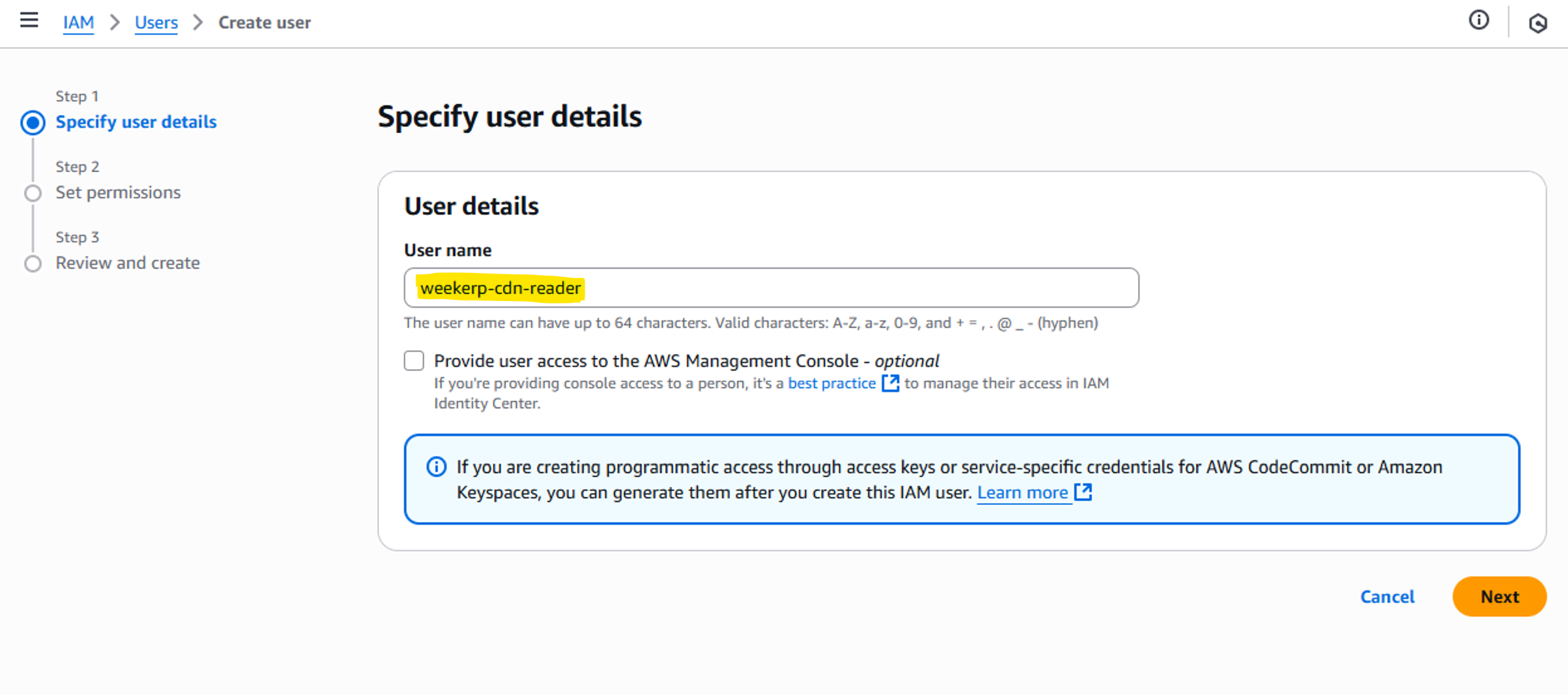
#### 3. Enter a user name and click **Next**
1. Enter `weekerp-cdn-reader`
2. Click **Next**
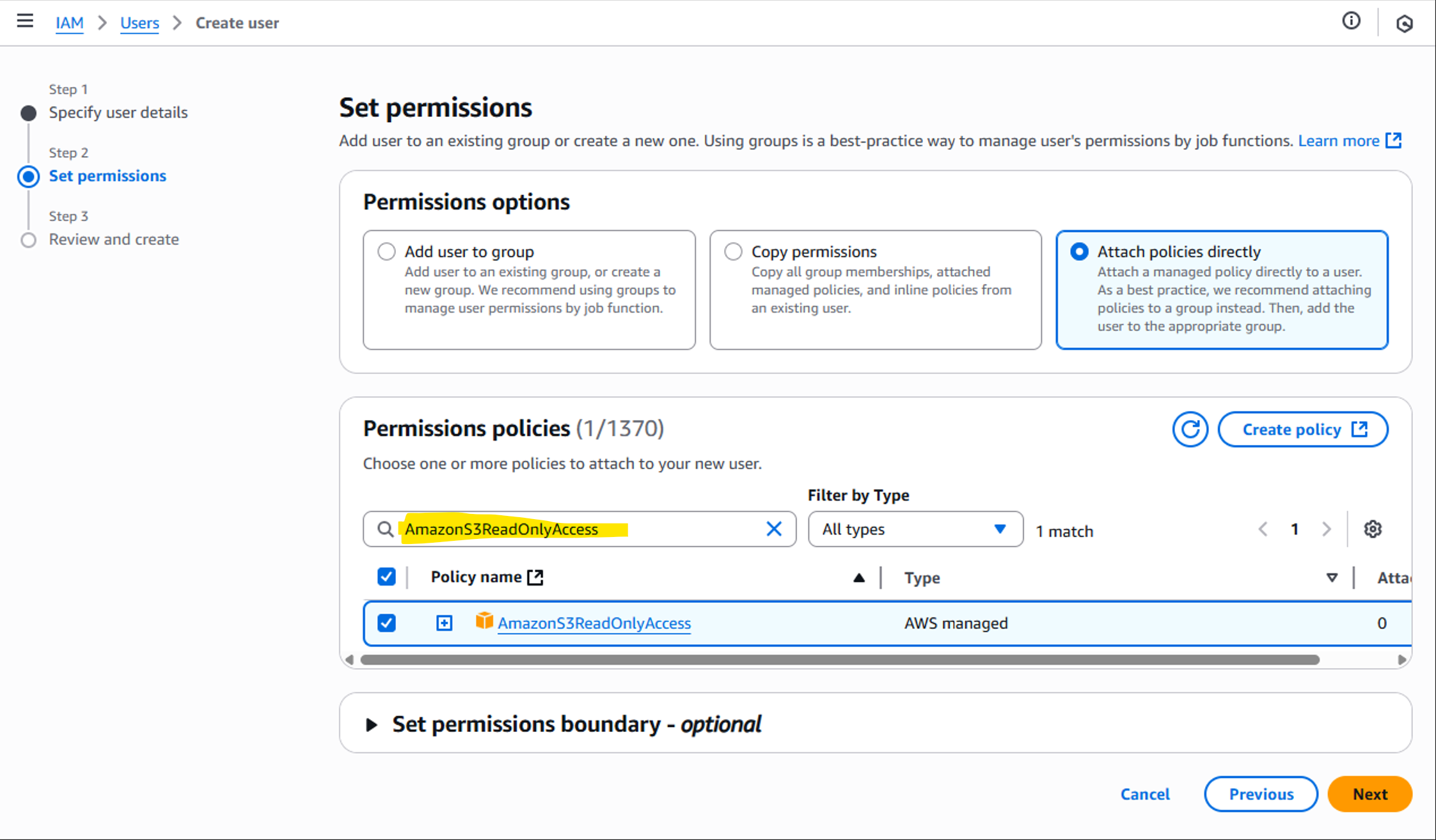
#### 4. Attach a policy
1. Search for **AmazonS3ReadOnlyAccess**
2. Select it from the results
3. Click **Next**
> If you prefer attaching a custom policy directly, you’ll need permissions like the following:
```json
{
"Statement": [
{
"Effect": "Allow",
"Action": [
"s3:GetObject",
"s3:ListBucket",
"s3:GetBucketLocation"
],
"Resource": [
"arn:aws:s3:::my-bucket/*",
"arn:aws:s3:::my-bucket"
]
}
]
}
```
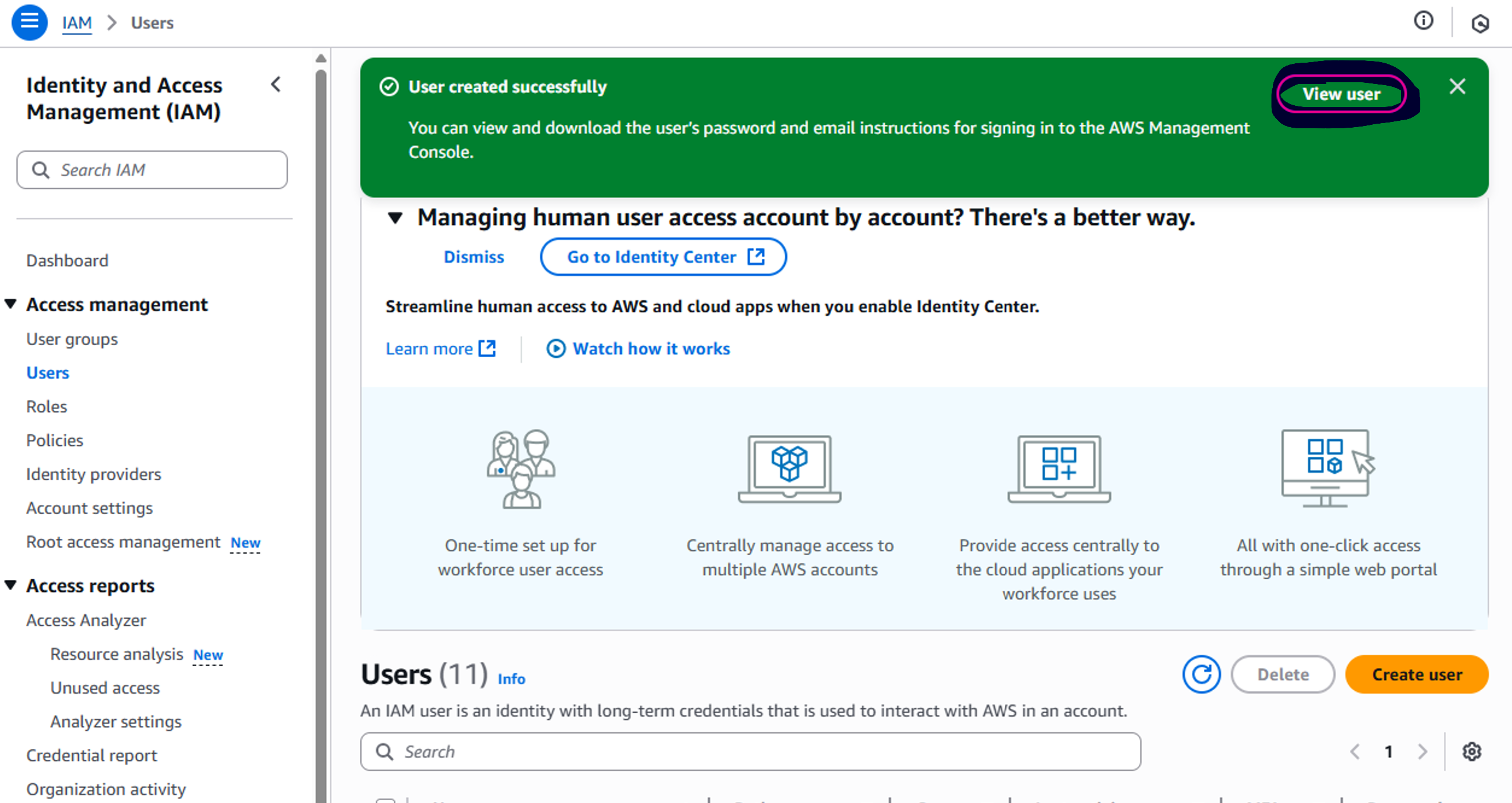
#### 5. Verify the creation result
1. Confirm the created user
2. Click **View user**
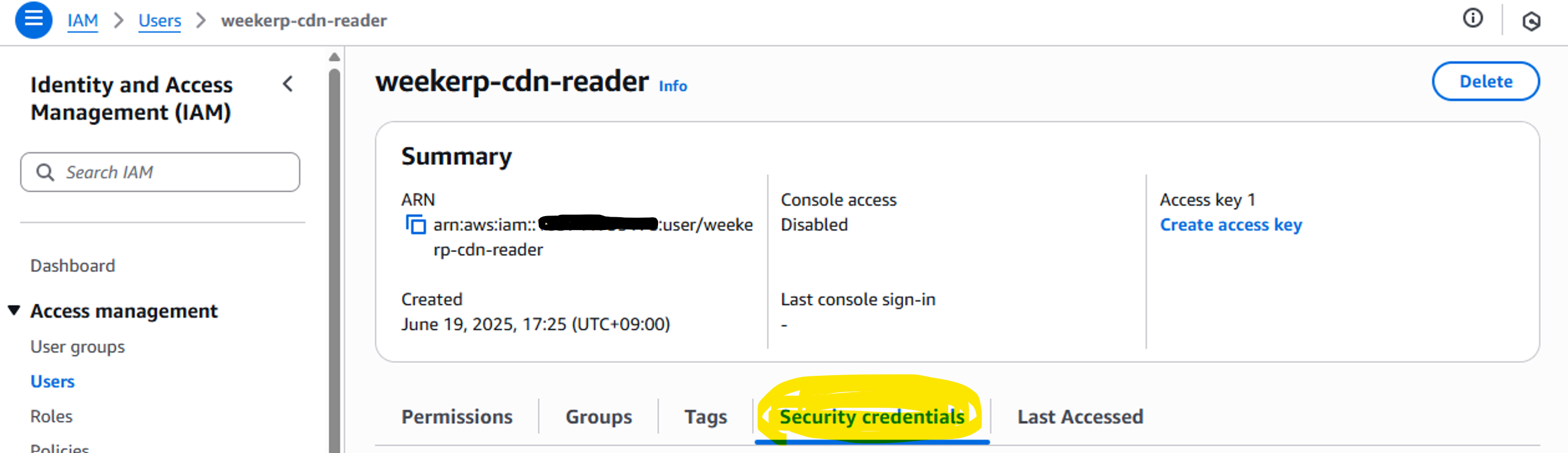
#### 6. On the user details page, open the **Security credentials** tab
ㅡ
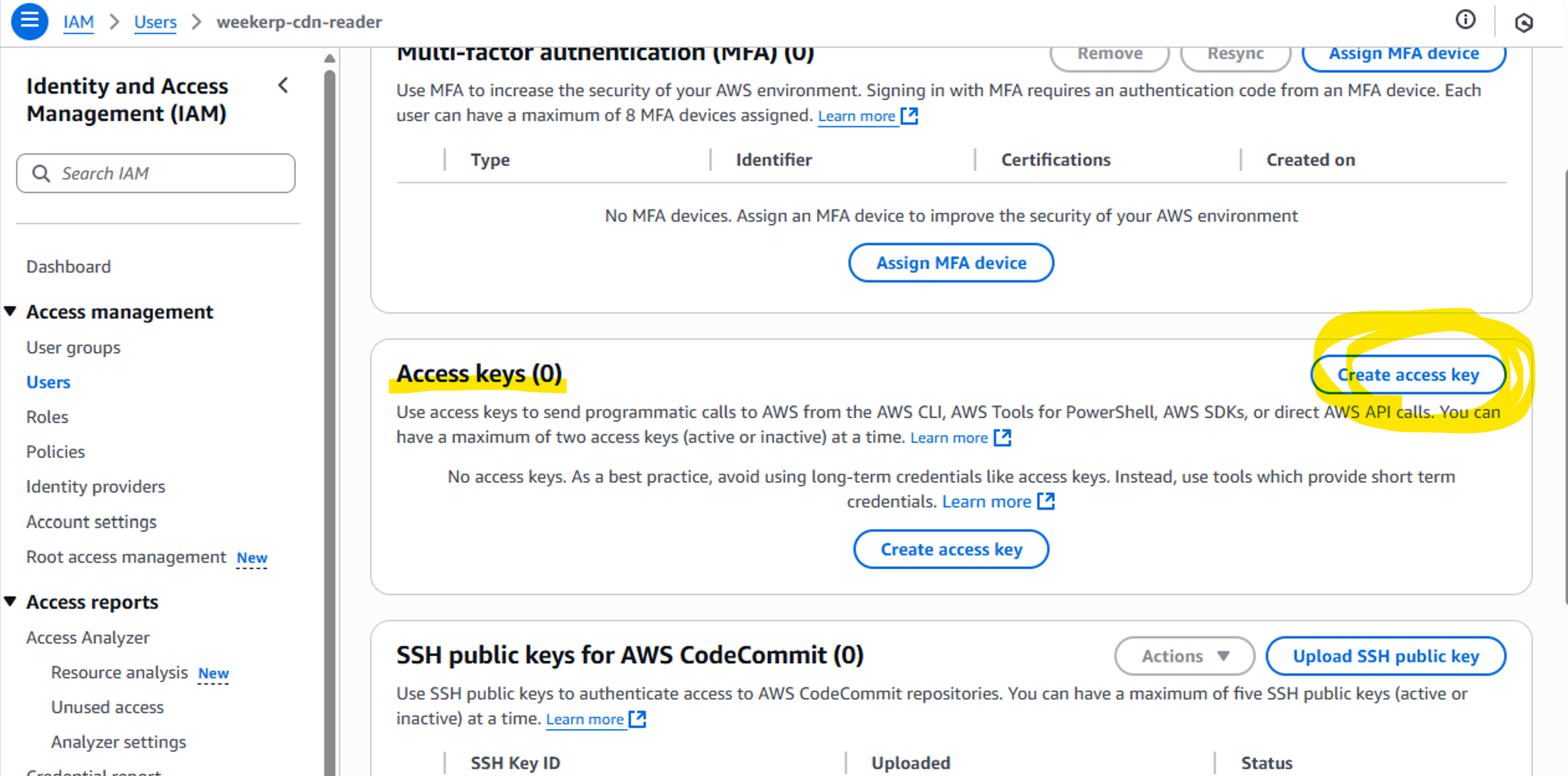
#### 7. Scroll down and click **Create access key**
1. Scroll down
2. Click **Create access key**
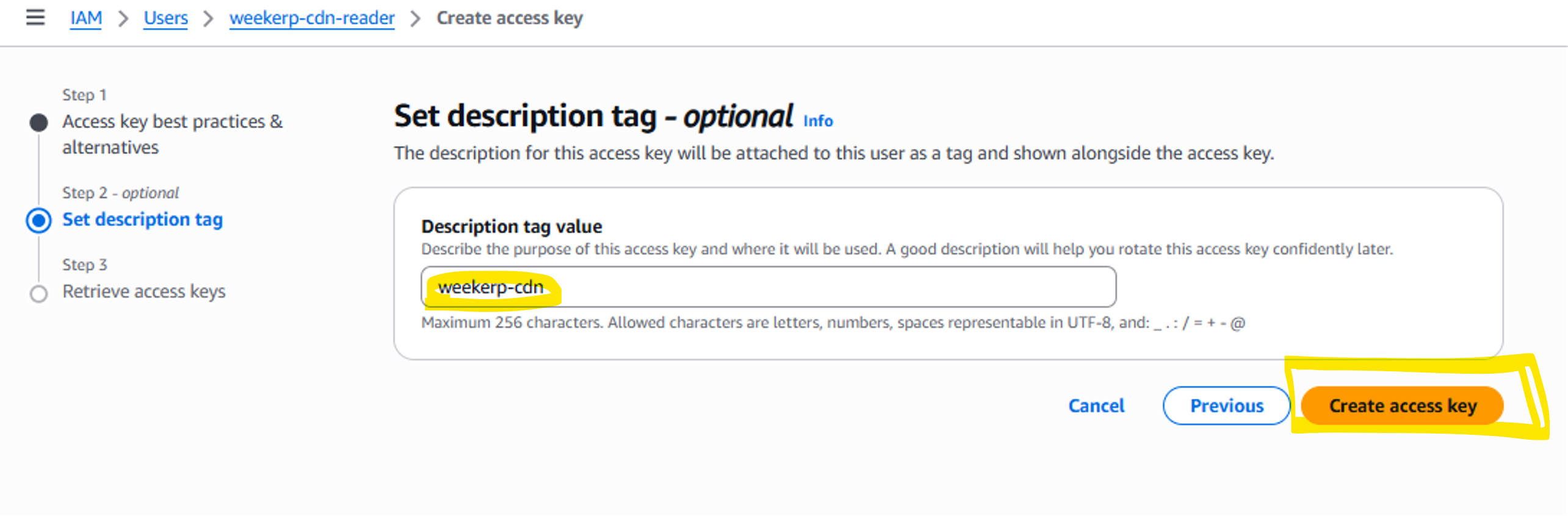
#### 8. Add a description and create the key
1. Enter a **Description tag value**
2. Click **Create access key**
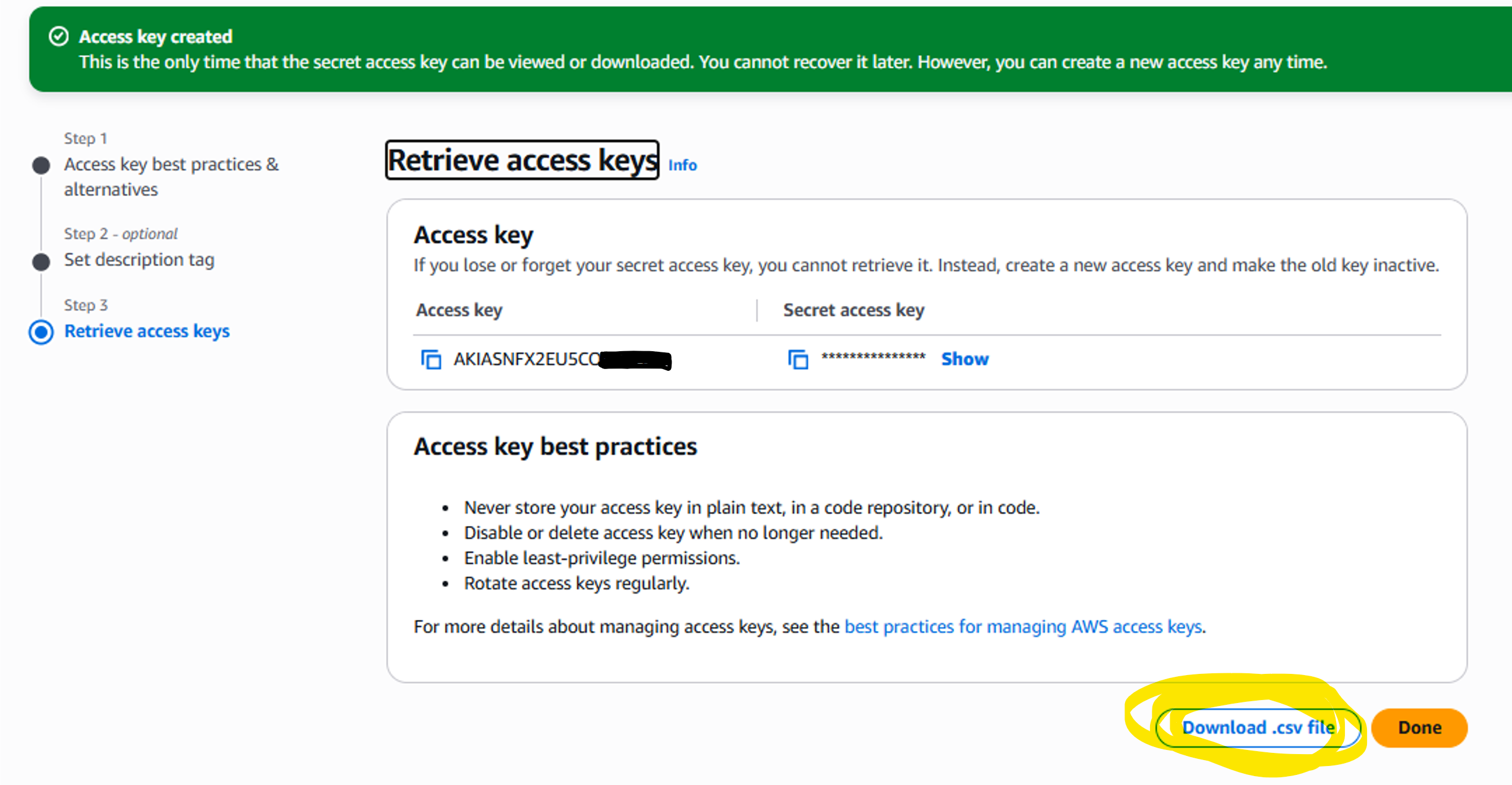
#### 9. Confirm the result and download the CSV file
1. Verify the keys
2. (Recommended) Download the **CSV file**
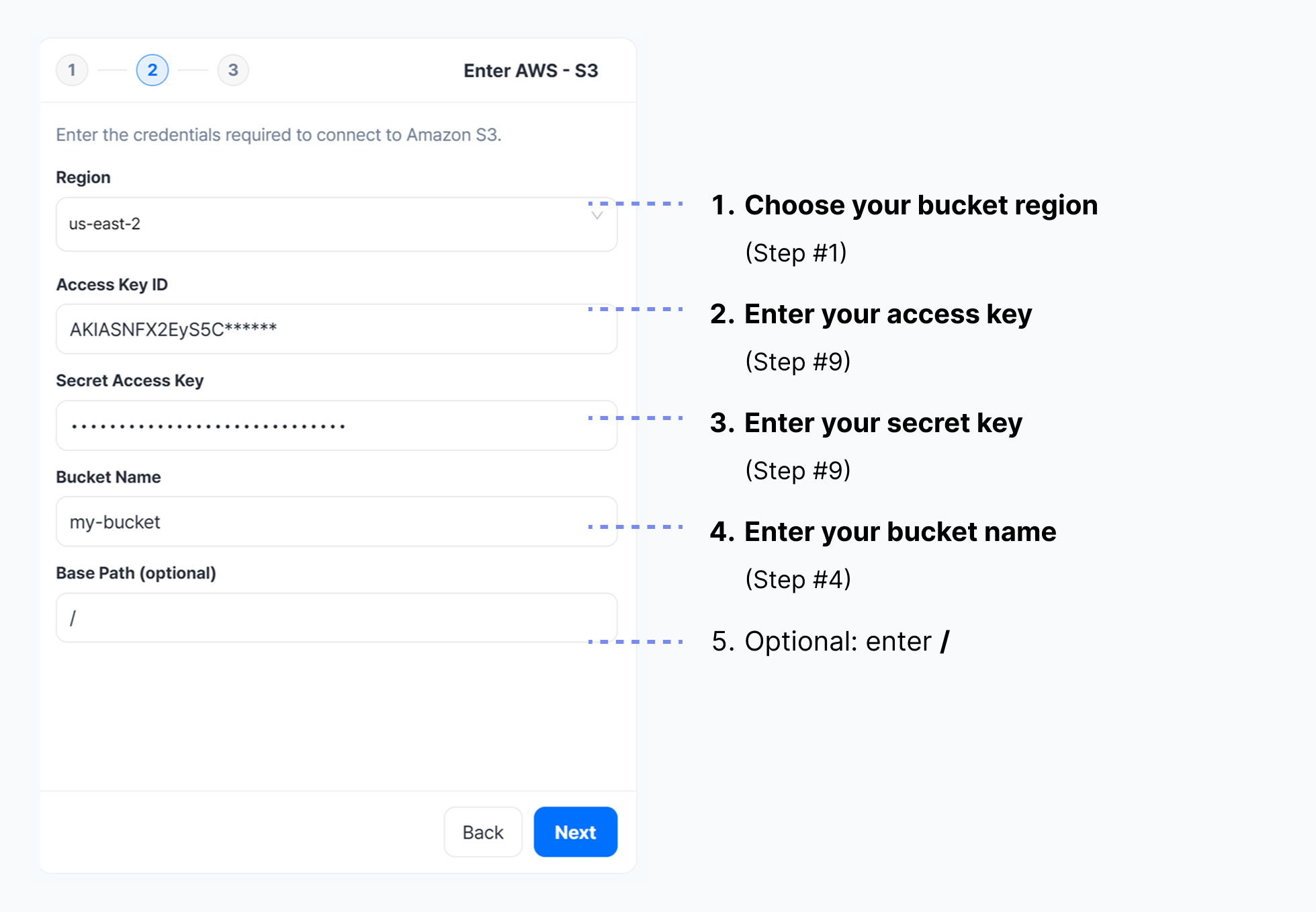
#### 10. Make sure you have the following ready:
1. Bucket Region (Step #1)
2. Access Key ID (Step #9)
3. Secret Access Key (Step #9)
4. Bucket Name (Step #4)
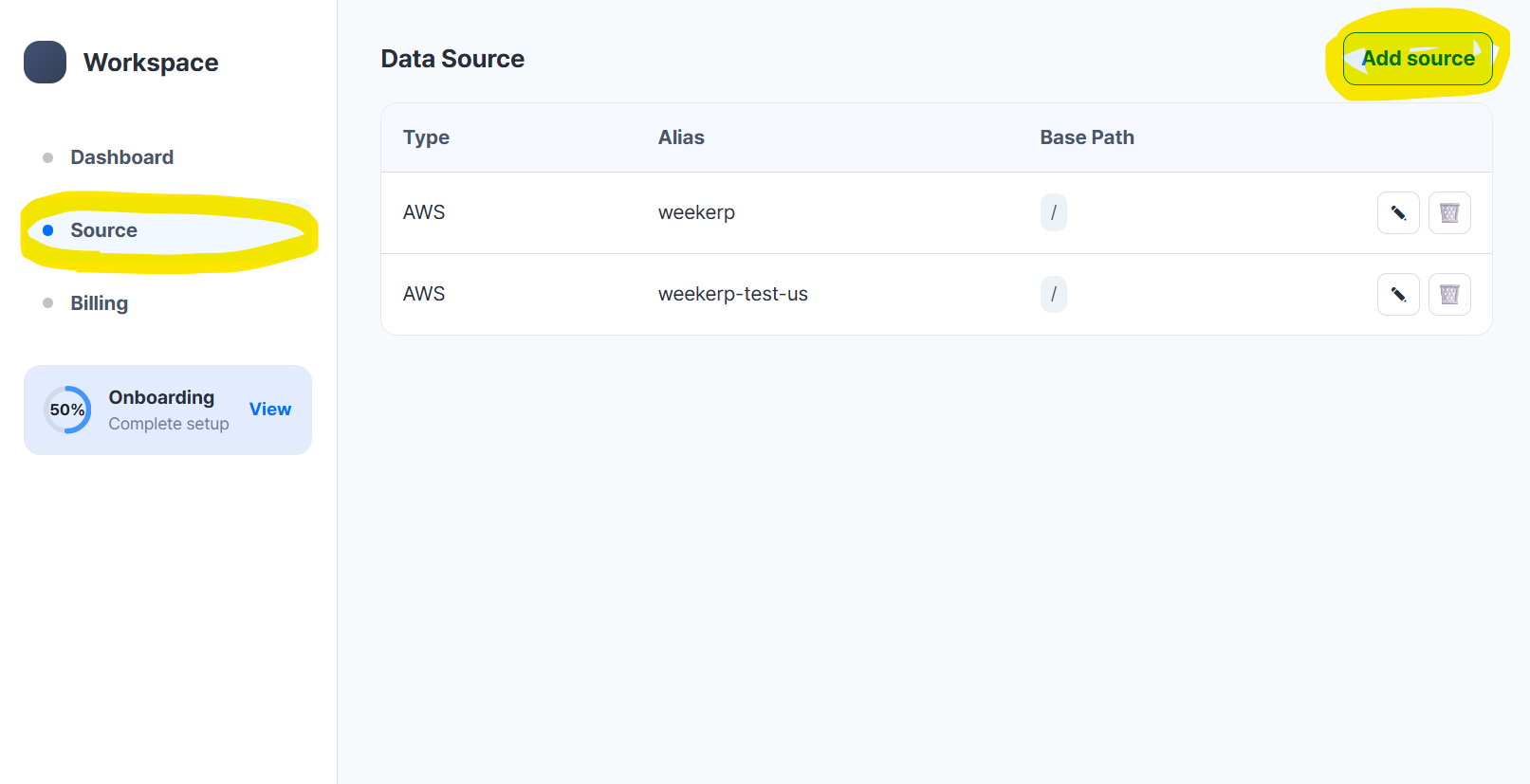
#### 11. In Weekerp, click **Add Source** (top-right)
1. [Open Weekerp](https://weekerp.com/space/callback)
2. Click the **Source** tab
3. Click **Add Source**
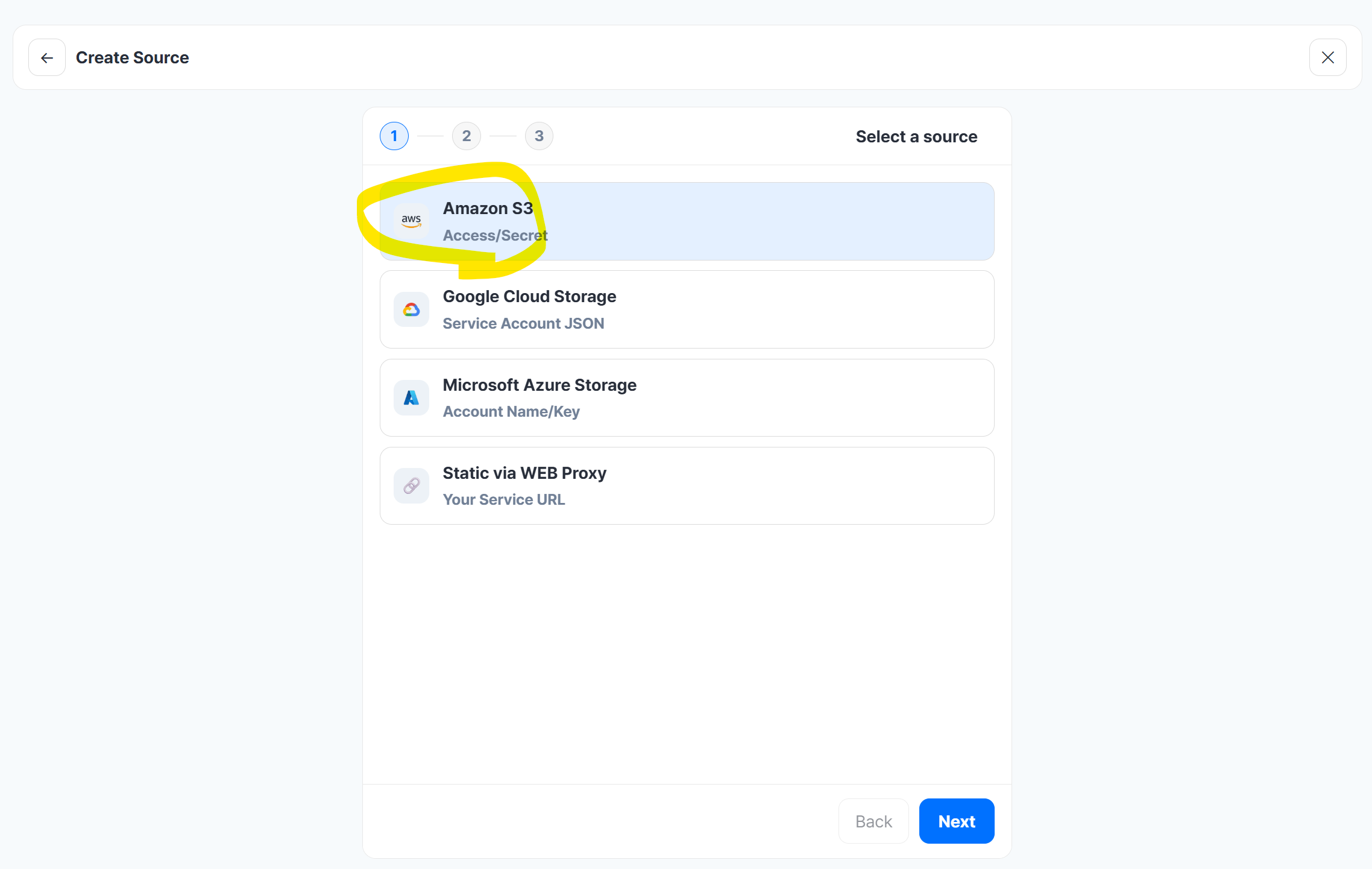
#### 12. Select **Amazon S3**
#### 13. Enter credential information
1. Select **Region**
2. Enter **Access Key ID**
3. Enter **Secret Access Key**
4. Enter **Bucket Name**
{% hint style="info" %}
**BasePath** sets the root directory for origin requests.
{% endhint %}
If your files are stored like below, you can set BasePath to `/` or `/assets`.
* /dog.jpg
* /assets/cat.png
**Request example**
* `cdn.weekerp.com/image/{alias}/dog.jpg`
**Origin request**
* **With BasePath set:**
* **Without BasePath:**
For more details, please refer to [basepath](https://weekerp.gitbook.io/image/storage/basepath "mention").
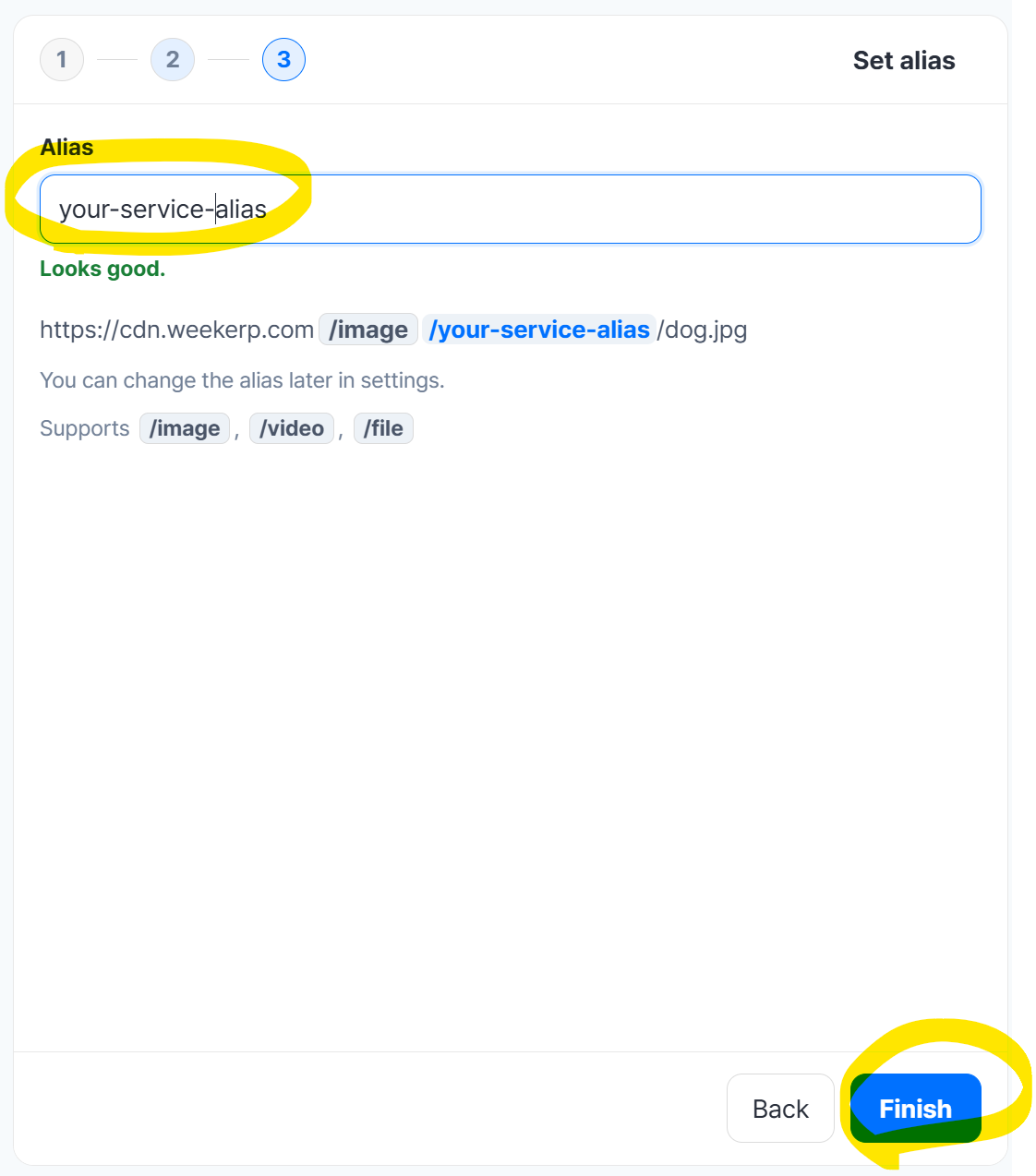
#### 14. Enter the source alias
1. Enter the alias you want to use
2. Create the alias
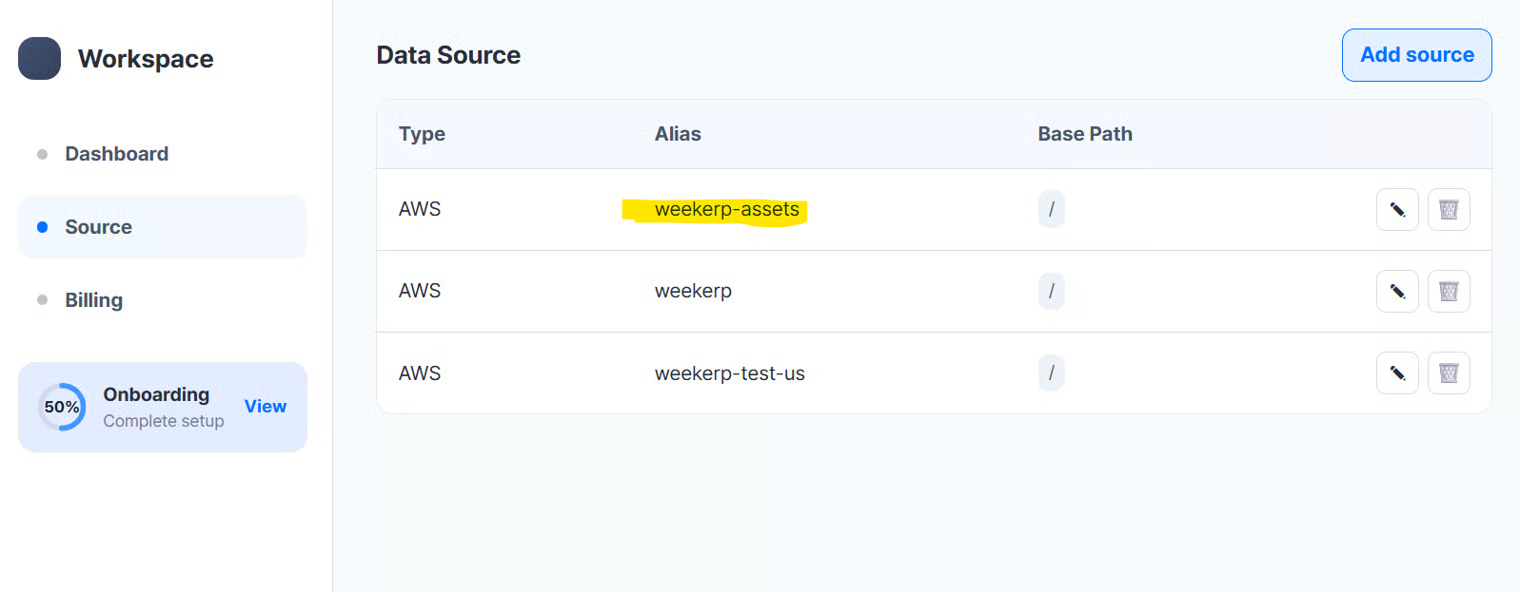
#### 15. Verify the created data source
#### Use it like this:
cdn.weekerp.com/`image`/`weekerp-assets`/dog.jpg
cdn.weekerp.com/`image`/`weekerp-assets`/dog.jpg?ai=Rotate the image to the right
cdn.weekerp.com/`video`/`weekerp-assets`/test-video.mp4
All settings are complete.
In general, it takes about **5–10 minutes** to propagate the connection across all global environments.